
Microsoft Copilot Copilot in Word offers a new way to process text using artificial intelligence (AI). This introduction to Copilot in Microsoft Word walks you through its extensive features and capabilities, enabling you to create, edit, and perfect your documents more efficiently. Copilot combines the power of technology with ease of use to support your writing process, generate content, and provide contextual editing. Discover how you can use Copilot for Word as your AI assistant for word processing.
Features of Microsoft Copilot in Word
With Microsoft Copilot in Word, you have access to various features, including:
- Formatting Drafts: Start with a blank document and easily add content using Copilot.
- Add content: Add content to your document using prompts.
- Rewrite the text: Have your texts rewritten to fit the context or in a different tone of voice.
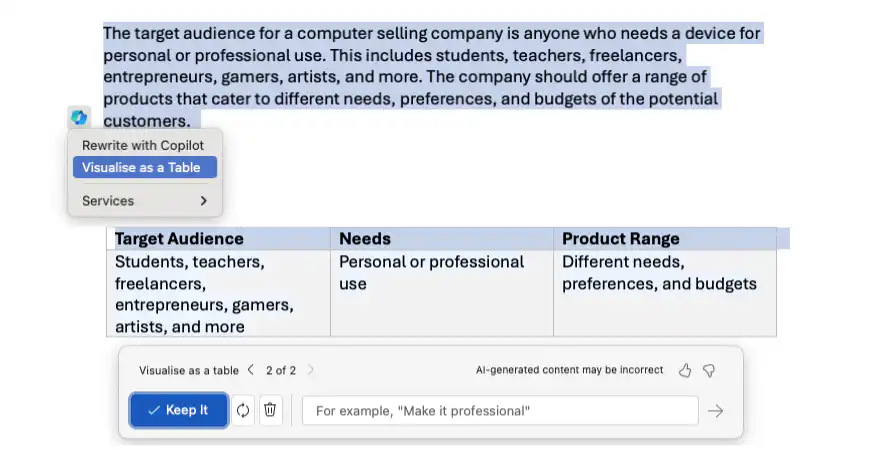
- Convert Text to a Table: Copilot easily generates a table based on the text you've written and your prompts.
- Chatting with Copilot: Ask questions about the content of your document and get answers right away.
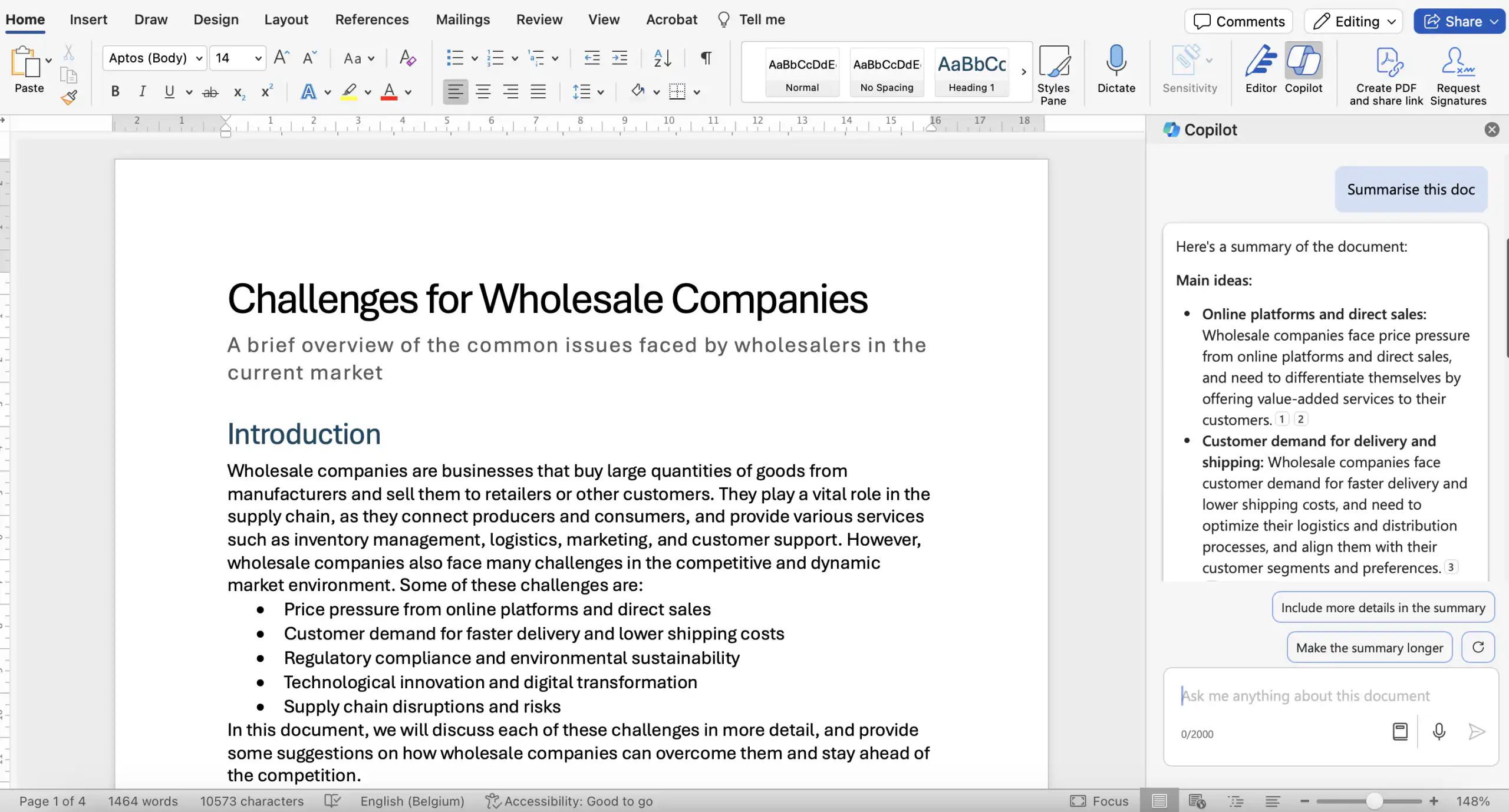
- Generate summaries: Quickly generate a summary of your document with a single click.
- Perfect Your Document: Strive for perfection by following Copilot's suggestions or asking questions to tailor the document to the desired tone of voice.
How does Microsoft Copilot work in Word?
Creating Concepts
Open a blank document in Word and type your prompt in the Draft with Copilot box. Use “/” or click on “Reference a File” to specify the name of a file on which the newly generated text should be based. You can specify up to 3 documents.
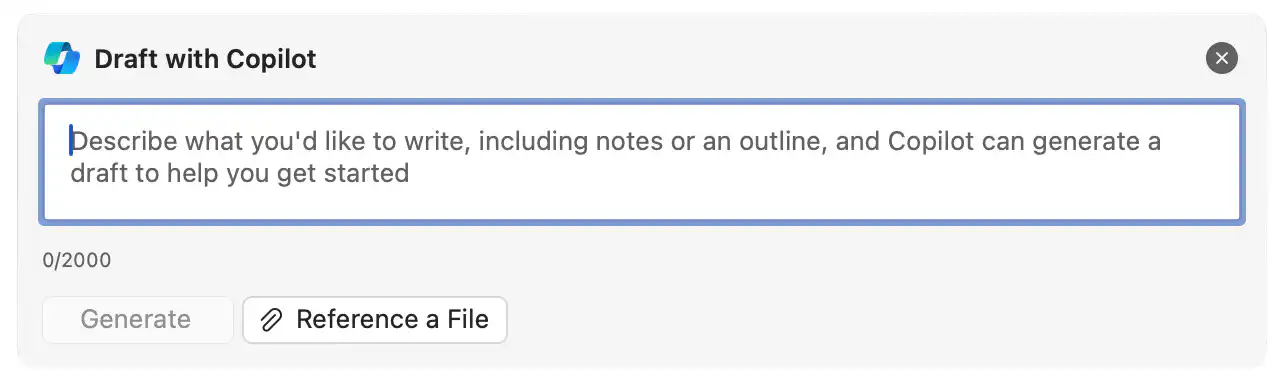
Once the text has been generated, you can keep it, delete it, or regenerate it to get a new version. You can also easily supplement the base prompt with additional elements such as context, tone of voice, or length to improve the generated text.

Here are a few prompts to try:
- “Write a white paper on project management.”
- “Write a job posting for a business consultant position at ESC bv.”
- “Write an article about the importance of a good work-life balance.”
- “Write a white paper on project management.”
- “Design a template for meeting agendas that includes fields for the date, attendees, and action items.”
- “Create a standard template for customer feedback reports based on [document].”
Tip: Provide additional context in your prompt so that Copilot can give you a more relevant answer. Read “Prompts in Copilot: Best Practices”to learn how to write good prompts.".
Add content
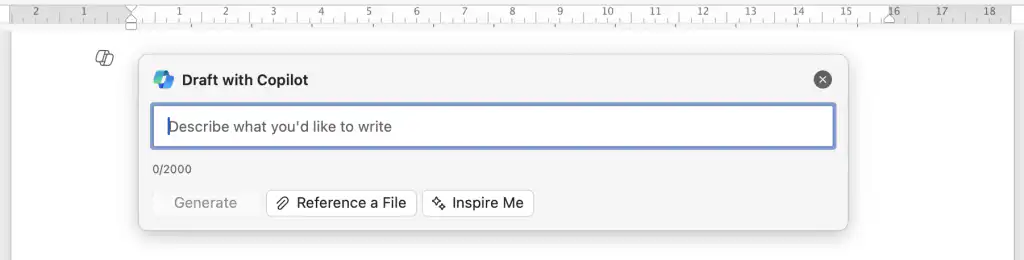
Open a (blank) document, click the Copilot icon that appears in the left margin of your document, and enter your prompt or select “inspire me” for text based on the content you've already written. Then choose to keep the text, regenerate it, delete it, or modify your prompt with additional context.
Here are a few prompts to try:
- “Write a paragraph about time management”
- “Create a high-level overview of [topic].”
- “Summarize the core principles of [topic].”
- “Evaluate the advantages and disadvantages of [topic].”
- “Create a detailed FAQ section on [topic].”
Rewrite the text
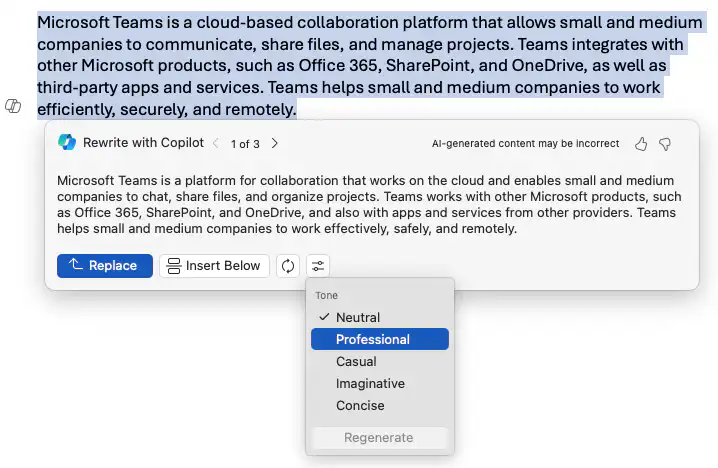
Select the text you want to have rewritten, click the Copiloot icon in the left margin of your Word document, and click “Rewrite”. Copilot generates a few rewritten versions for you to choose from. Select “Replace”to replace your old text with the new text,“Insert below” to insert the new text below your current text, or click the regenerate-icon to generate new suggestions or the adjust tone-icon to adjust the tone of the text.
Here are a few prompts to try:
- “Rewrite the second section of this report to make it more concise.”
- “Turn this technical explanation into a user-friendly version.”
- “Revise this document to make it more engaging and persuasive.”
- “Give me specific examples from this document of how I can improve it for [a leadership evaluation].”
- “Change the font of the first paragraph to [Arial] and set the color to [Blue].”
Convert Text to a Table
Select the text you want to place in a table, then click the Copiloot icon in the left margin of your Word document. Select “Display as a Table” and Copilot generates a table. Select “Keep it” to insert the table into your document, or click the Regenerate-icon to create a new table or the Discard-icon to delete the table. To further optimize the table, you can customize the prompt in the compose box.
Chatting with Copilot
Ask Copilot questions about the content of your document to help you understand the context. For example, you can ask content-related and open-ended questions, have it generate summaries, or refine the writing style of your document.
To open the Copilot chat window, click the Copilot icon located on the ribbon below the tab Start‘
Generate a summary
Open the Copilot chat window in an existing document, and either click the suggested prompt or type “Summarize this document”. At the bottom of the generated prompt, you can “References”Click here to view the quotes that Copilot used.".
You can then continue the conversation in the Copilot chat window and ask general or specific questions about the document's content.
Here are a few prompts to try:
- “Summarize the key findings of the [market research report].”
- “Provide a brief overview of the financial results for the last quarter.”
- “Summarize this business plan on one page.”
Perfect Your Document
Ask Copilot questions via the chat box about the document's formatting. Ask questions to adapt the document to the target audience's preferred writing style, such as “Is there a call to action?”, “How can I revise this document to make it sound more professional?” or “Is there a quote from the sales manager in the document?”. In your prompt, describe the context and the target audience so that Copilot can help you as best as possible with perfecting your documents.
Here are a few prompts to try:
- “Check this document for grammatical errors.”
- “Check this document for consistency in terminology.”
- “Make sure this document complies with our company’s style guidelines.”
Join the Copilot Community on Reddit
Are you curious about the latest developments and want to deepen your knowledge of Microsoft Copilot? The Copilot Community on Reddit is where enthusiasts come together to share insights, information, prompts, and new updates. It’s a platform where you can not only learn how to get the most out of Copilot, but also share your own insights. Visit the Reddit Community and join in on lively discussions.


