

Microsoft Copilot Copilot in Teams offers a new way to communicate and collaborate using artificial intelligence (AI). This introduction to Copilot in Microsoft Teams will familiarize you with the extensive features and capabilities that take collaboration and communication within your team to the next level. Copilot combines the power of technology with ease of use to support your communication, meetings, and collaboration. Discover how you can use Copilot for Teams as your AI assistant for communication and collaboration with your team.
Features of Microsoft Copilot in Teams
With Microsoft Copilot in Teams, you have access to various features, including:
- Summarizing meetings and chats: Simply have Copilot summarize the content, discussion points, or decisions that were made.
- Catching up on meetings: Running late for a meeting? No problem. Let Copilot give you a quick update on what you missed.
- More Effective Meetings: Use Copilot as a participant in your meeting and ask questions about the content to keep the meeting moving forward.
- Generating Action Items from Meetings: Generate a list of action items to wrap up the meeting efficiently.
- Gaining Insights from Recordings: Ask Copilot questions about the content of your meeting using the recording or transcript.
- Rewriting Chat Messages: Come across as more professional, more persuasive, or more confident with Copilot.
- Personal Assistant: Use Copilot as your personal assistant to help you with your daily tasks and stay up to date on action items, calls, emails, documents, and much more.
- Phone calls: Have your phone calls summarized, or use Copilot to help guide your call by asking relevant questions.
How does Microsoft Copilot work in Teams?
You can use Microsoft Copilot in Teams in three different ways: in meetings, chats, and channels, or through the Copilot chat.
Copilot in Teams Meetings
Copilot in Teams can help you hold meetings, communicate, and collaborate more effectively. For example, Copilot can summarize your meetings and generate action items, or you can use Copilot as a personal assistant during your meetings or as a sounding board.
Please note: Copilot in Teams for meetings works based on meeting transcripts. This means the meeting must be recorded or transcribed. Additionally, Copilot only works for meetings that take place within your organization. Therefore, Copilot will not work in meetings hosted externally.
Summarizing Meetings
You can use Copilot in Teams to make your meetings run more efficiently and to follow up on them. Simply ask Copilot for a summary of the meeting, the action items, or the points of discussion that not everyone agreed on—either before or after the meeting.
In the Teams meeting, click the Copilot icon in the top bar. A chat window will then appear where you can type your prompt or use suggested prompts such as “Show meeting notes“, “Recap of the meeting” or “List of action items”Click here.".

Catch up on what you've missed
Are you running late and has the meeting already started? Click on the Copilot icon and ask for a brief summary of the points already discussed, then let Copilot help you catch up on the information you missed without having to interrupt the meeting. You can also ask, “Was I mentioned during the meeting?”to catch up only on the points where you were mentioned.".
More Effective Meetings
Use Copilot in Teams to make your meetings more effective by using Copilot as a sounding board or personal assistant during the meeting. Click the Copilot icon during the meeting and enter the appropriate prompts to optimize your meeting. You can also choose from one of the suggested prompts, such as “Recap of the meeting so far“, “List of action items“, “Suggested follow-up questions“, “What questions remain unresolved?“, “List different perspectives by topic“, “List the main points we discussed” or “Generate meeting notes“.
Here are a few prompts to try:
- “Where do we disagree during the meeting?”
- “How did [person] respond to Melissa’s proposal?”
- “What questions could I ask to help move the meeting forward?”
- “Make a list of issues that weren’t resolved during the meeting.”
- “Where are the holes in [person’s] argument?”
- “Create a table listing the ideas discussed, along with their respective pros and cons.”
- “Suggest follow-up questions to ask after the project evaluation.”
- “What are some points the team isn’t currently considering? Formulate the answer as questions I could ask the presenter.”
- “What have I missed in this meeting so far?”
- “What questions can the group ask to generate more ideas?”
Generating Action Items from Meetings
End your meeting with an action item list generated by Copilot in Teams. Copilot notes the most important action items discussed, including the assigned individuals. This allows you to end the meeting with a clear action item list, which optimizes communication. You can also ask Copilot at the end of the meeting about any open topics, unresolved issues, or questions that remained unanswered before the meeting concludes.
Also keep in mind that Copilot may have trouble assigning the correct people to tasks or in summaries when you’re hosting an in-person meeting and/or multiple people are speaking from the same meeting room or the same person is speaking.
Gaining insights from the recording
After your Teams meeting ends, you can use Copilot with the recording or the transcript. You’ll find these in your meeting chat under the ‘Recap’ tab. In the ‘Recap’ tab, you can click the Copilot icon to open a new Copilot chat window where you can select suggested prompts or write your own. Ask Copilot broad or specific questions about the content of the meeting.
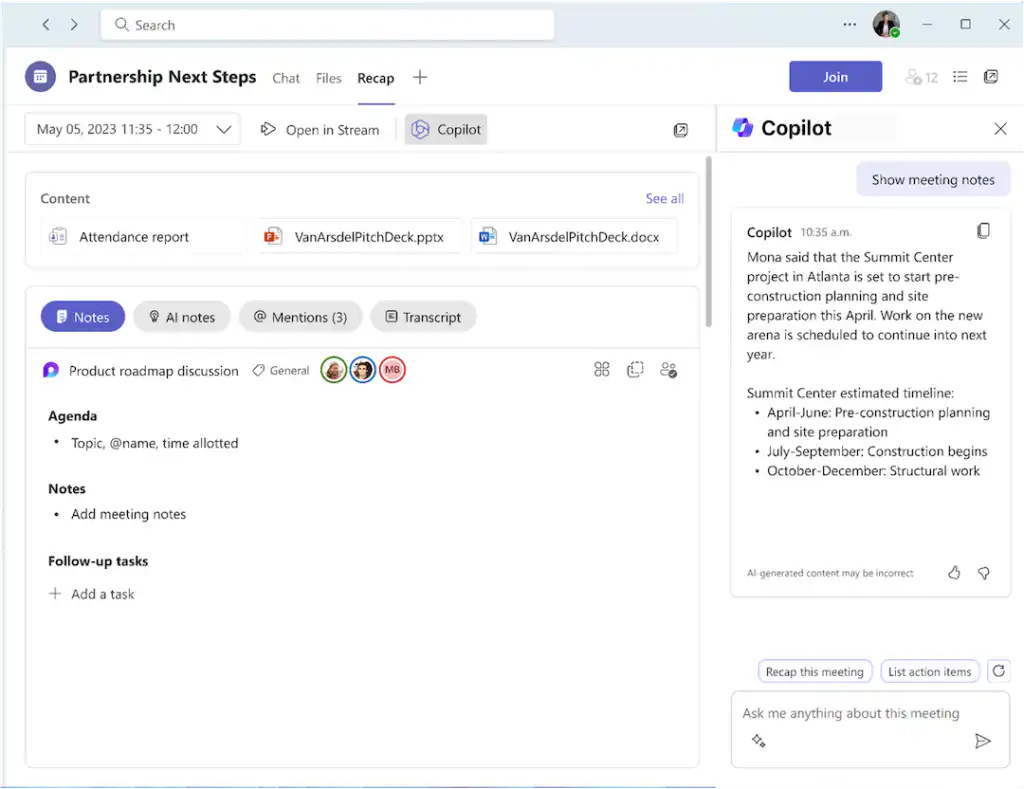
Here are a few prompts to try:
- “Which questions were asked and answered, and which remain unresolved?”
- “What was the atmosphere and tone of the meeting?”
- “Summarize what everyone said, but in less technical terms.”
- “Why did [person] say this was a good idea?”
- “What was each participant’s biggest concern? What were they most enthusiastic about?”
- “What ideas did [person] have that I can share with the marketing team?”
- “Draft an email for all meeting participants listing the action items discussed.”
- “What was each meeting participant’s biggest concern? What were they enthusiastic about? Keep it brief.”
Copilot in Teams Chats
With Copilot in Microsoft Teams, you can easily track and summarize pending messages. That way, you no longer have to endlessly scroll through long conversations. Copilot can summarize key points, action items, and decisions from Teams chats over the past 30 days.
Summarize Teams chats with Copilot
When you open a one-on-one chat, group chat, or meeting chat, you can click the Copilot icon in the upper-right corner. This opens a Copilot chat box where you can choose from suggested prompts under ‘More prompts’, such as summarizing the highlights of the past 7 or 30 days, listing action items, or writing your own prompts in the text box.
The response generated by Copilot also includes several links you can click on. These take you to the message on which the summary or action item is based, so you can quickly return to the relevant part of the conversation.
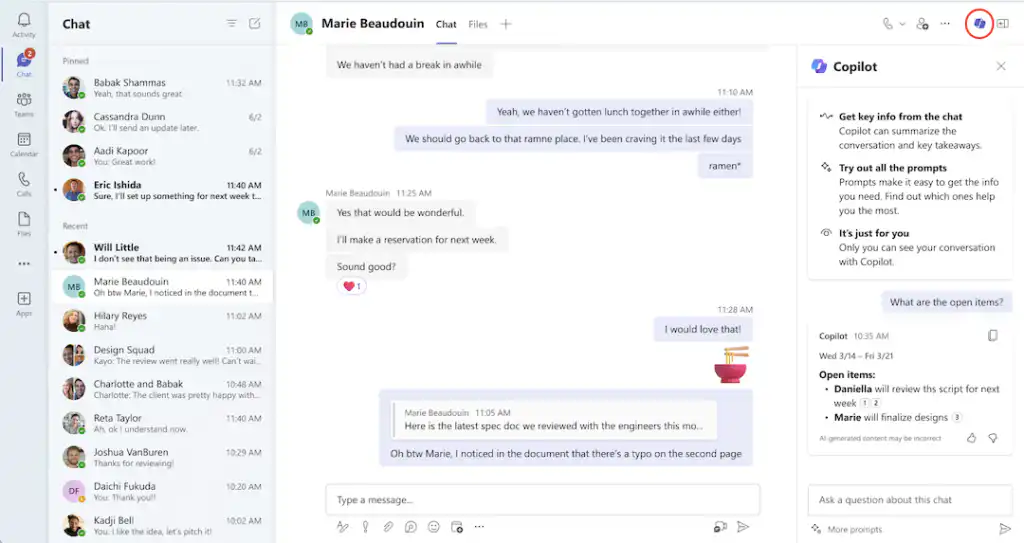
Here are a few prompts to try:
- “What are the outstanding issues in this chat?”
- “Give me the highlights from [chat] over the past 7 days.”
- “What did [person] think of my proposal regarding sales presentations?”
- “Where was I mentioned in this group chat over the past 14 days?”
- “Are there any specific action items for me?”
Text Rewriting
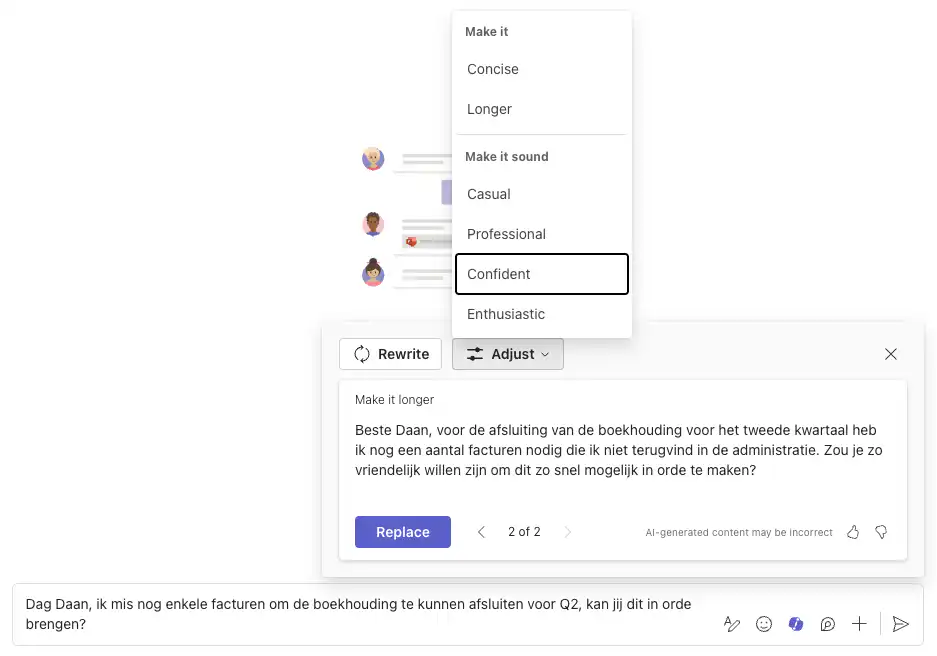
Improve your messages in Teams chats to come across as more professional, persuasive, or confident. Start typing your message, click the Copilot icon in the toolbar, and select “Rewrite“. You can then choose to replace the generated text by clicking “Replace”Click here“ or customize the text to match your desired tone of voice or length by clicking "Adjust”Click.".
Copilot in Teams Channels
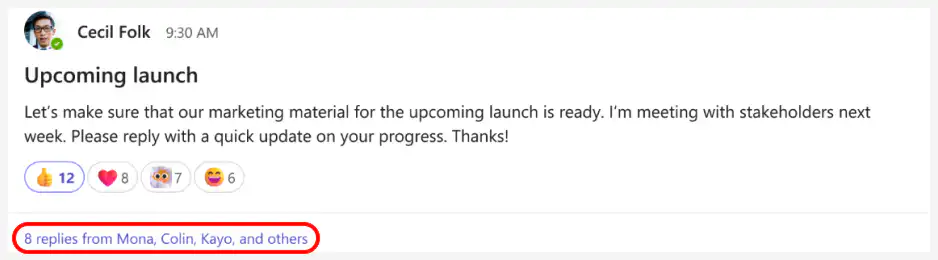
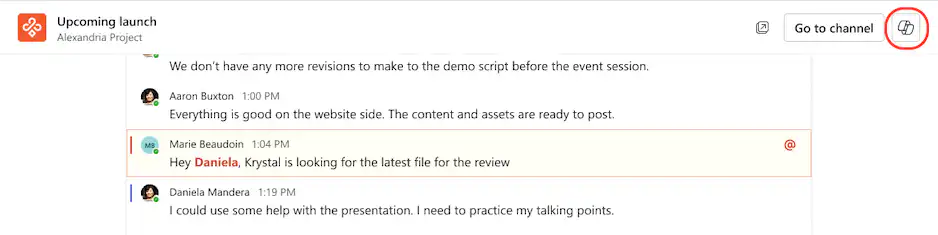
In addition to using Copilot in Teams chats or meetings, you can also use Copilot in Teams channels. Go to the conversation in the channel, and then click the Copilot icon in the upper-right corner. Choose a prompt from the suggestions under “more prompts” or write your own prompt.
Copilot Chat in Microsoft Teams
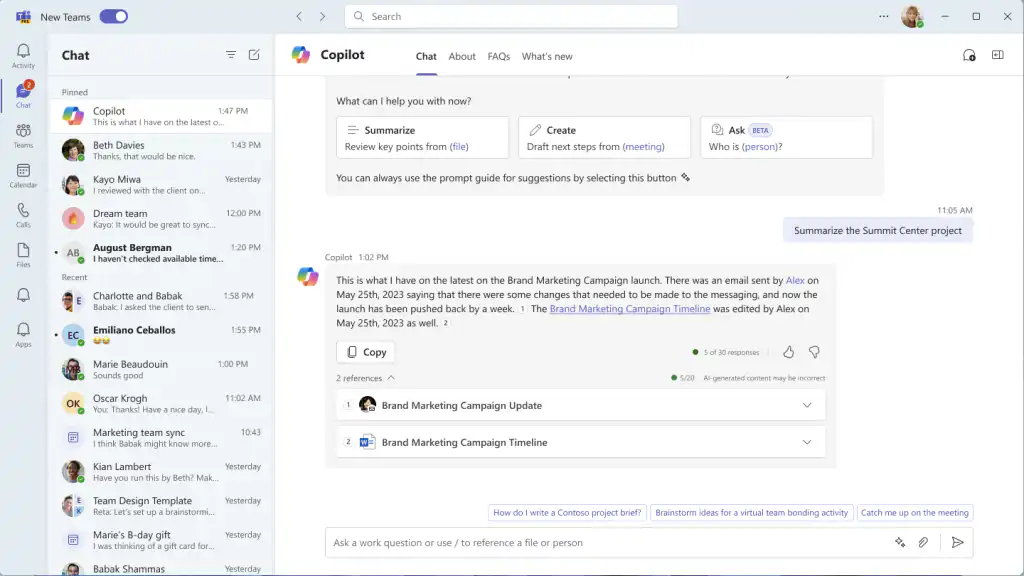
Use the Copilot chat to ask questions about information from documents, presentations, emails, calendars, notes, contacts, chats, meetings, and more. Copilot processes the business data you have access to, becoming your powerful assistant for all your questions. No more endlessly searching for notes or conversations that were buried deep in your memory.
Copilot appears as a chat, just like group or one-on-one conversations, in the “Chat”. If you don't see this, go to “Apps” and search for ‘Copilot’ in the search bar. This will allow you to add Copilot as a chat to your Teams. Select the chat and choose one of the suggested prompts or create your own prompt. Easily view the sources Copilot used to generate its answers to quickly find documents or information.
Tip: Use “/”to select files, people, meetings, or emails that Copilot should use as a basis.".
Here are a few prompts to try:
- “What are the action items from my last meeting?”
- “When is my next meeting with [person] scheduled?”
- “Refresh unread chats.”
- “List my upcoming meetings for this week.”
- “Help me prepare for all my meetings scheduled for tomorrow.”
- “Draft a message stating that the sales results must be submitted next week.”
- “Tell my team how we updated the marketing campaign.”
- “Compile all chats, emails, and documents related to [client] from the past 30 days.”
- “What is the next milestone for [project]? Are there any risks? Help me brainstorm a list of possible risk mitigation measures.”
- “Create a schedule in the style of [a file] that includes the timeline from [another file] and incorporates the project list from [a person’s] email.”
- “Help me prepare for a meeting on [topic]. Review all documents, chats, and emails related to [topic].”
- “What were the main topics of the [meeting]? Format each section with a bold heading, a bulleted list, and bold names.”
Copilot in Teams Calls
Just as you can use Copilot in Teams during meetings, you can also use Copilot as an assistant during phone calls. Click the Copilot icon during a call to start transcription. You can select the language being spoken. You can then open the Copilot chat window during the call and use Copilot as an assistant. You can also use Copilot after the call.


Join the Copilot Community on Reddit
Are you curious about the latest developments and want to deepen your knowledge of Microsoft Copilot? The Copilot Community on Reddit is where enthusiasts come together to share insights, information, prompts, and new updates. It’s a platform where you can not only learn how to get the most out of Copilot, but also share your own insights. Visit the Reddit Community and join in on lively discussions.


