
Microsoft Copilot In PowerPoint, Copilot offers a new way to create presentations through its integration with artificial intelligence (AI). This introduction to Copilot in Microsoft PowerPoint will walk you through the advanced features and capabilities that help you create compelling and professional presentations. Copilot combines the power of technology with ease of use and supports you in designing slides, crafting content, and automating design tasks. Discover how you can use Copilot for PowerPoint as your personal AI assistant for creating presentations.
With the Narrative Builder, you can create presentations in no time!
You tell Copilot what you want to say, and it generates a presentation for you. You can customize and expand the content, and Brand Manager ensures that your presentations are created in accordance with your company's brand guidelines.
Microsoft Copilot Features in PowerPoint
With Microsoft Copilot in PowerPoint, you have access to various features, including:
- Create new presentations: Create presentations based on topics or documents.
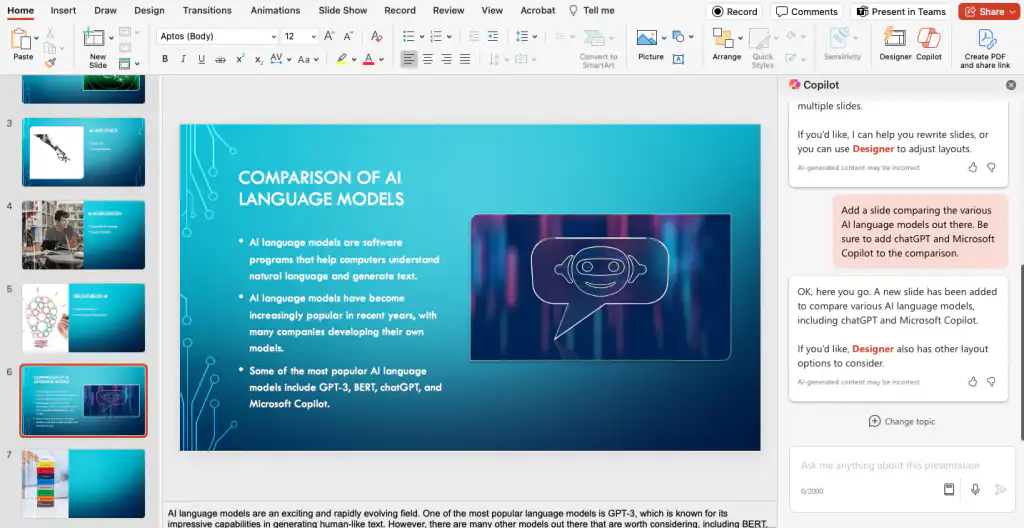
- Add slides or images: Easily add slides and images to slides using prompts in Microsoft Copilot.
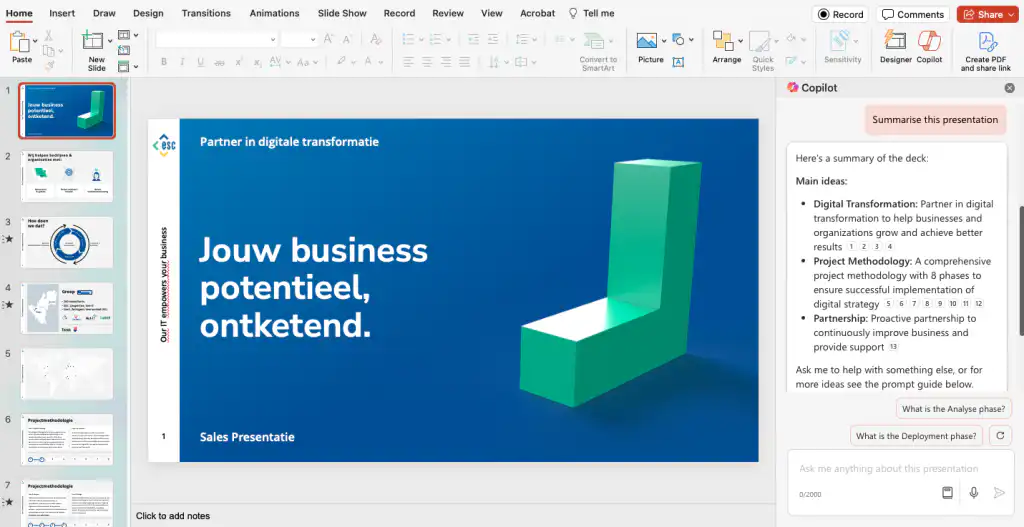
- Summarizing Presentations: Generate a summary, ask for the most important slides, or create a list of action items.
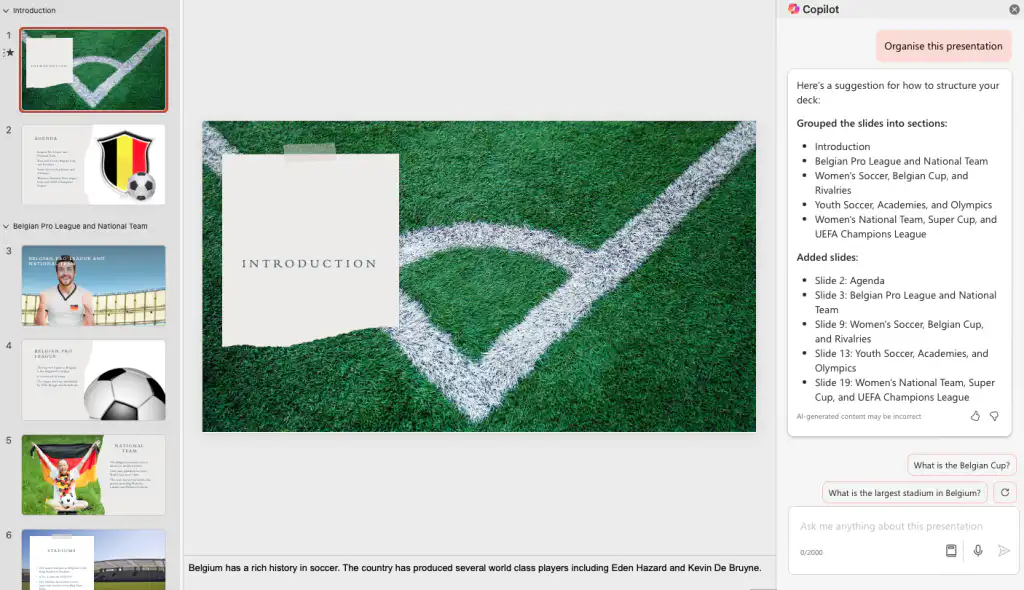
- Organizing Presentations: Add sections and section headings to your presentation with Copilot.
- Using Brand Guidelines: Use the corporate identity templates when creating new presentations.
How does Microsoft Copilot work in PowerPoint?
Create a new presentation
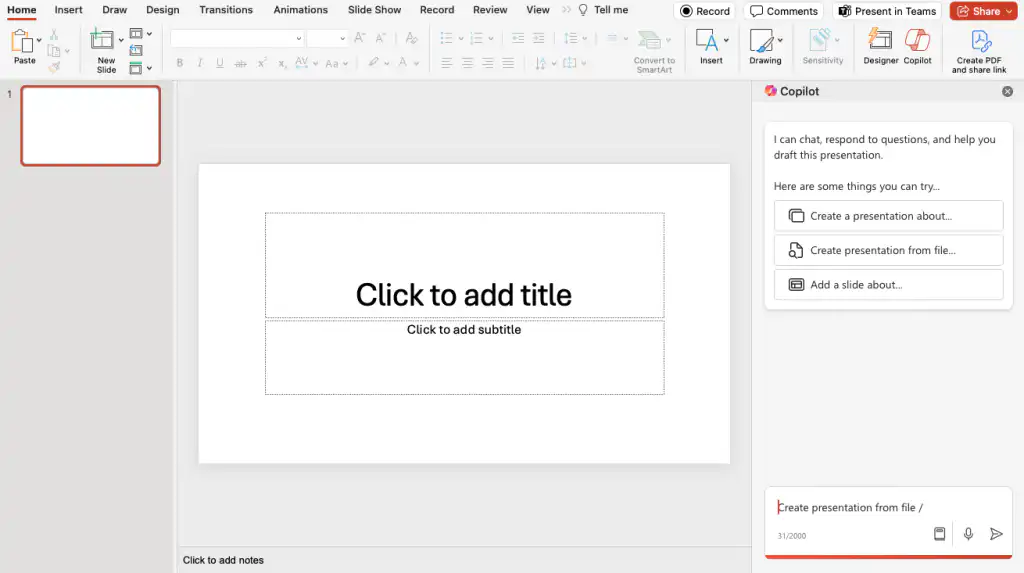
To create a new presentation, open a blank presentation in PowerPoint. Then click the Copilot icon in the toolbar under the ‘Home’ tab. Once the Copilot window appears on the right side, you can type a prompt or choose from “Create a presentation about…”to create a presentation on a specific topic“ or "Create a presentation from a file…”to create a presentation based on an existing document.".
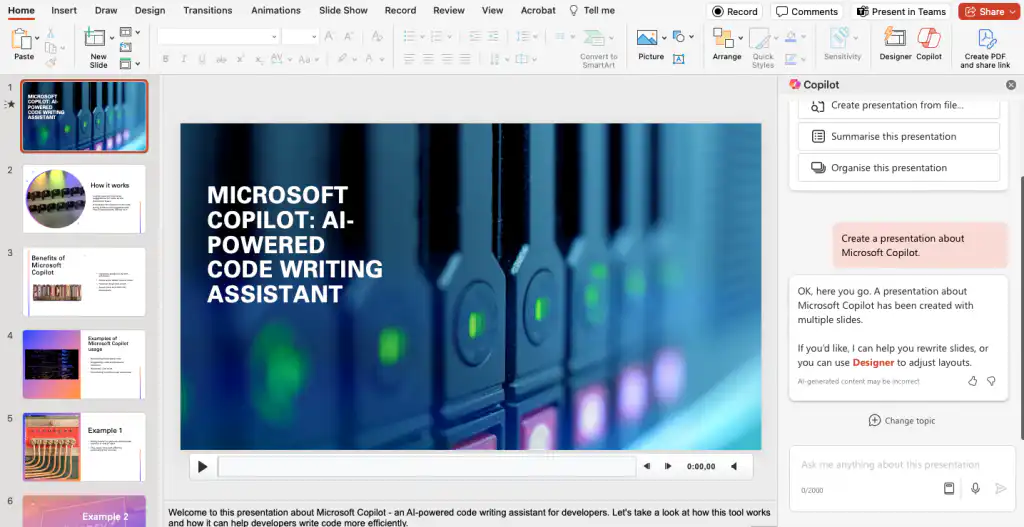
By clicking on ‘Send‘When you click “,” Copilot generates a presentation based on your prompt. You can then customize the presentation yourself or use Copilot to make further adjustments.
Tips for creating a presentation based on a document:
- Use “/”to open a file on which you want the presentation to be based.".
- Use the styles in Word for titles and headings so that Copilot can better understand the structure of your document.
- Add images to your Word document, and Copilot will incorporate them.
- Create your Word document using the corporate style template so that Copilot can take it into account.
Using Brand Guidelines with Copilot
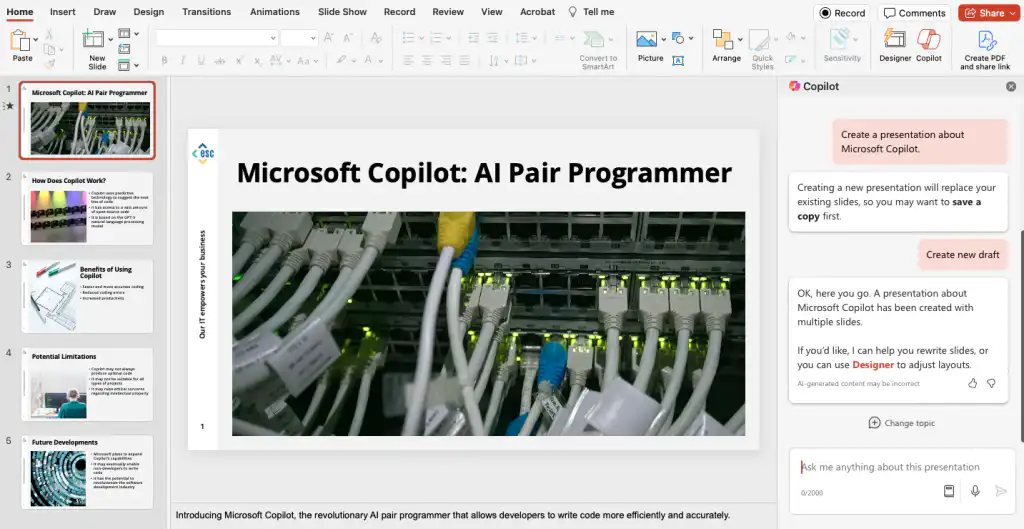
When you create a new presentation based on a blank template, Copilot creates its own brand style for the generated result. If you want to use your own brand style, open an existing presentation that uses that brand style. Alternatively, you can open a presentation based on one of Microsoft PowerPoint’s built-in templates or themes.
Next, use the same prompt as when creating a new presentation. Be sure to make a copy of the presentation before Copilot generates a new presentation, so you don't lose the presentation you're using for your brand guidelines. Fortunately, Copilot gives you a warning about this first.
Add slides or images
Once you've generated a presentation or want to edit an existing one, you can use Copilot. Open the Copilot window by clicking the Copilot icon in the toolbar. Use the prompts “Add a slide about…” or “Add an image of…” along with the content you want to include to add new slides and images to the presentation.
Summarizing Presentations
Copilot in PowerPoint can quickly and easily summarize (long) presentations or extract the key points and action items from a presentation. Open the Copilot window from the toolbar and type a prompt such as “Summarize this presentation“. Copilot adds references to the generated summary to indicate the slides from which it sourced the information.
Here are a few prompts to try:
- “Summarize this presentation.”
- “Create a list of action items.”
- “Please provide a list of the most important slides.”
Organizing Presentations
Copilot in PowerPoint helps you organize your presentation. Copilot will divide your presentation into sections and add section headings to improve its structure. Open the Copilot window and type the prompt “Organize this presentation“.
Here are a few prompts to try:
- “Rearrange my slides to improve the flow and coherence.”
- “Add a summary slide that highlights the main points of the presentation.”
Join the Copilot Community on Reddit
Are you curious about the latest developments and want to deepen your knowledge of Microsoft Copilot? The Copilot Community on Reddit is where enthusiasts come together to share insights, information, prompts, and new updates. It’s a platform where you can not only learn how to get the most out of Copilot but also share your own insights. Visit the Reddit Community and join in on lively discussions.


