
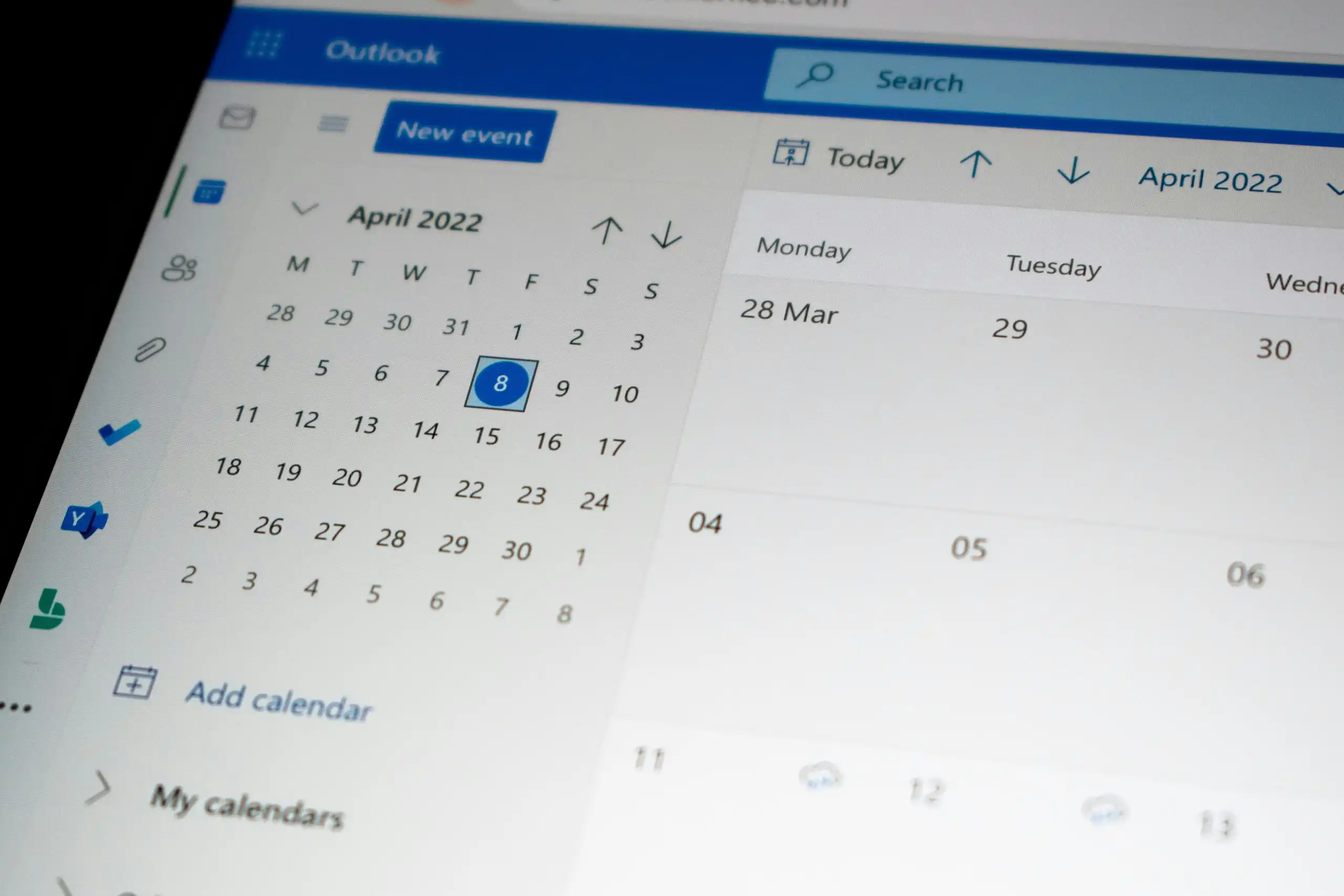
If you're a Microsoft Office user, you probably use Outlook every day. The program not only keeps your email inbox up to date, but also functions as a calendar. But did you know that Outlook can do much more than just that? Here are 5 tips to make Outlook even more efficient:
Change the number of lines in Message Previews
Here's a handy trick to outsmart shady marketers.
You can change the size of message previews in your inbox. This way, you can see more of the email before you open it. If you receive a lot of emails that aren't really worth your time, you can filter them out in advance:
Outlook's "Clean up" Folder Process
This is a real gem if you regularly exchange emails back and forth with contacts. You know how it goes: you send an email to three people to set up a meeting, they reply with suggestions, and before you know it—15 emails later—you decide to just do it on Skype after all.
That's all well and good, but in the meantime, your inbox is full of emails. Clean Up Folder moves all unnecessary emails in the folder you select to the trash. Or to another folder of your choice.
This will immediately make your inbox look a lot more organized, and you'll have a clear picture of what your workday looks like.
Schedule Your Email
Sometimes you want an email to arrive at a specific time. For example, an email to a contact who you know checks her email on Saturdays. Or a reminder to a forgetful team member a few hours before an important deadline.
Or, if you want to be sneaky, you can convince your boss that you're still working at 10:03 p.m. on Saturday.
It's easy with Outlook:
Outlook Quick Steps
Want to boost your productivity and efficiency? With Quick Steps, you can set up your own commands so that with just a few quick keystrokes, you have complete control over Outlook.
This is a great trick for advanced users who pride themselves on typing at lightning speed. Recommended by our developers.
Outlook Rules
"Outlook Rules" isn't just one of our favorite sayings—it's also the name of a handy feature in your email program.
You can set up specific actions to happen automatically. For example, you can have all messages containing specific words automatically moved to a certain folder. That way, all emails containing the words ‘project Jabberwocky’ will go straight to the Jabberwocky folder.
Although it can be therapeutic to immediately archive all your replied-to emails (at least that's how it feels to me), it's a lot easier when Outlook does it for you.
Those are just a few of the things Outlook can do for you. Don't hesitate to Contact our experts to learn about more applications.


