
In our last week's blog post we wrote about how to handle undelivered emails (bounces) to clean up your marketing lists. This blog post is a follow-up, in which we show you step by step how you can easily do this if you ClickDimensions used.
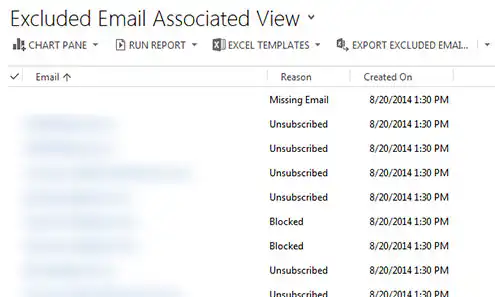
Within ClickDimensions, you can retrieve information about ‘excluded email addresses’ or ‘excluded emails‘. These are email addresses to which ClickDimensions can no longer send emails.”.
There may be several reasons for this:
- Blocked: The email address has been blocked due to a hard bounce or more than one soft bounces. It's also possible that the person in question marked your email as spam.
- Missing email address: There is no email address listed next to the contact, lead or account record.
- Unsubscribed: The person in question has unsubscribed from all your emails or from the ‘Subscription List’ associated with the relevant marketing list. Within ClickDimensions, you can use ‘Subscription Lists’ to give your customers or prospects the option to choose which emails they wish to receive. For example, a customer might want to receive the weekly newsletter but would prefer not to receive emails about events.
Where can you find the list of excluded email addresses?
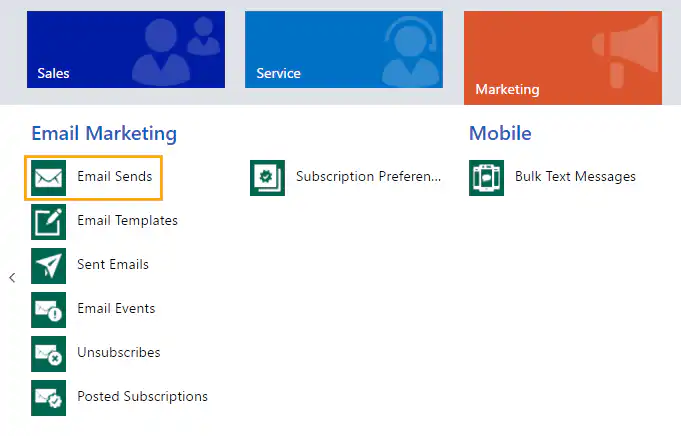
1) Go to Microsoft Dynamics 365 => Navigate to ‘Marketing’ => Then click ‘Email Sends’ in the menu’
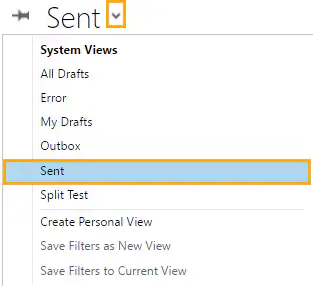
2) Change the view to ‘Sent’ => Click on the sent email for which you want to view the list of excluded email addresses
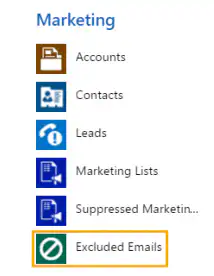
3) Next, go back to the menu => Navigate to ‘excluded emails’
4) You will now see a list of all excluded email addresses, along with the reason they were excluded (blocked, missing email address, or unsubscribed)
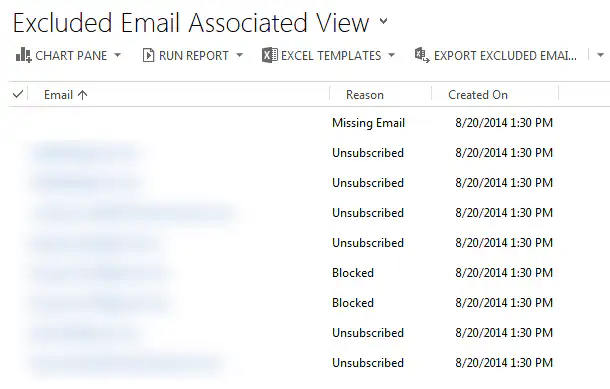
Use this list to maintain your marketing list
After sending an email through ClickDimensions, we recommend that you review this list of excluded email addresses each time to clean up your marketing list.
When an email address is missing
For an excluded email address that is missing an email address, it is, of course, easy to add an email address to the relevant lead, contact or account record.
If your email address is blocked
For an email address that has been blocked due to one hard bounce or multiple soft bounces, you can first check why the email was not delivered. With ClickDimensions, you can easily find this out by bounce code to view an ‘email event.’.
1) Go to the relevant contact, lead or account record => Navigate to ‘email events’ in the menu’
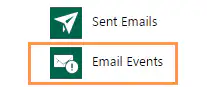
2) Click on the ‘email event’ you want to view in more detail
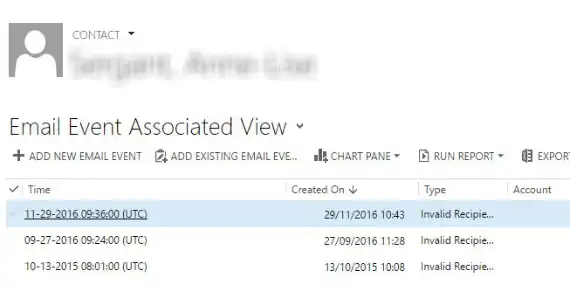
3) Next, you'll see the bounce code
A hard bounce This is due to an invalid or nonexistent email address. For example, when you view the ‘email event,’ you will see one of the following bounce codes:

A soft bounce This is the result of a temporary issue with a valid email address, such as a full inbox, a problem with the recipient's server, or your email being blocked by the recipient's spam filter. You may then see the following bounce codes appear, for example:

Please note: After 4 soft bounces within 3 months, ClickDimensions will block the email address in any case.
For a deactivated email address
For an email address that has been excluded due to an unsubscribe request, it goes without saying that you should immediately remove that email address from the marketing list.
> You can view the complete list of all bounce codes in ClickDimensions here view.


