

With the Microsoft Dynamics 365 app In Outlook, you can link emails, meetings, and appointments to a record in Dynamics 365; open a Dynamics 365 record directly from an email, and more. You can do this wherever and whenever you want—on your desktop, via the web, or on your mobile device.
Read more: What is the Microsoft Dynamics 365 app for Outlook?
You can also do this from an Outlook email Create a new case in Microsoft Dynamics 365, and then link this email to the case. All this without having to switch between the Outlook and Microsoft Dynamics 365 screens.
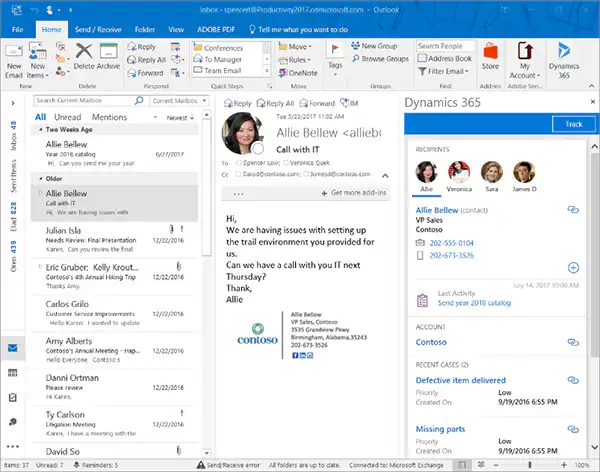
How do you do this?
Step 1: Click on Track.
Step 2: Click on New.
Step 3: select Case from the drop-down list.
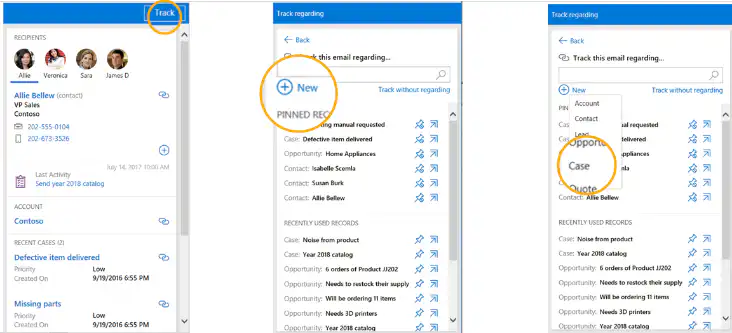
It is possible that you ‘Case’ is not listed in the drop-down list. This usually means that you do not have permissions to create or edit new cases in Dynamics 365. You can ask your Dynamics 365 administrator to grant you these permissions.
Step 4: Edit or add fields in the ‘Quick Create’ form.
If the email sender already exists in Dynamics 365, some fields will be filled in automatically:
- ‘The ’Customer” field is automatically filled in with the sender’s account name
- ‘The ’Case Title" field is automatically filled in with the subject of the email
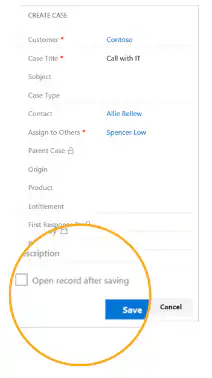
On this form, you can also check the ‘Open record after saving’ box. If you do this, the case will open in your browser after you save the form. This allows you to add more details about the case that could not be entered on the ‘quick create’ form.
Step 5: Click on Save and the new case has been created in Microsoft Dynamics 365. The app automatically assigns the case to you as the owner.
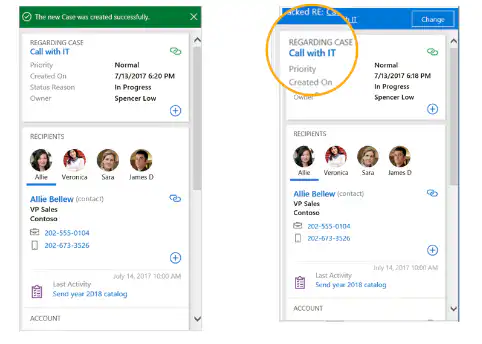
Tip: A case isn't the only thing you can create in Microsoft Dynamics 365 from an Outlook email. You can also create a lead, an opportunity, etc., depending on how the system is configured.
* Source for this article:
https://blogs.msdn.microsoft.com/crm/2017/07/25/convert-email-to-a-case-with-a-few-clicks-in-dynamics-365-app-for-outlook/


