

Social selling combined with CRM
LinkedIn's extensive network and smart search algorithms are perfect for finding your target audience and learning more about the decision-makers at companies in your target audience. With LinkedIn Sales Navigator, you can also send messages and InMails to anyone on LinkedIn, even if you aren’t connected. It goes without saying that this is a useful tool for prospecting. Of course, it becomes even more valuable when you integrate your LinkedIn Sales Navigator account with your CRM application.
In this blog post, we'll explore the possibilities of combining LinkedIn Sales Navigator with Microsoft Dynamics 365.
- Using LinkedIn Sales Navigator
- Define Your Target Audience
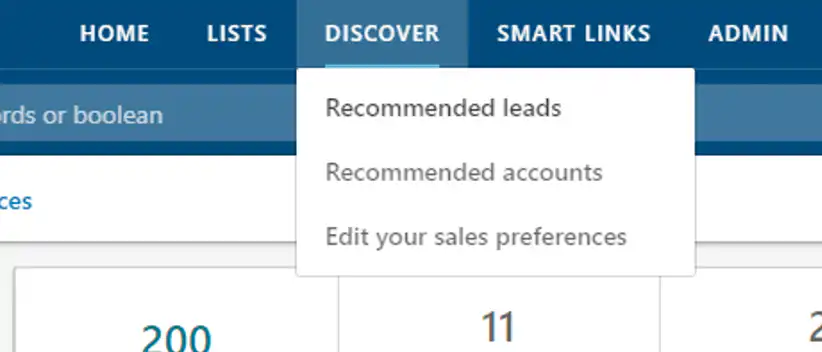
- Expand Your Lists with Top Accounts and Recommended Leads
- Advanced Search
- Send an InMail at the right time
- Share documents, presentations, and videos via Smart Links / PointDrive
- Follow us daily on
- Synchronize with Microsoft Dynamics 365
Using LinkedIn Sales Navigator
LinkedIn Sales Navigator is the go-to tool for social selling. It isn't free, but it's definitely worth it for salespeople who want to actively pursue social selling. The app helps you find the right prospects faster and provides relevant suggestions and updates.
Define Your Target Audience
In the LinkedIn Sales Navigator Start by defining Your target audience:
- In which region do you focus your efforts?
- Which economic sectors do you focus on?
- How many employees do the companies you're interested in have?
- What are the job titles of the people you want to reach?
After you've set your “sales preferences,” you'll automatically see a “newsfeed” based on your activities of leads that meet the specified preferences.
We recommend the most interesting Save Accounts (companies) and Leads (individuals) in lists. This way, you'll automatically see their updates, mentions, and other useful news appear on your Sales Navigator homepage.
Expand Your Lists with Top Accounts and Recommended Leads
As you use LinkedIn Sales Navigator, LinkedIn learns from you through artificial intelligence (AI). For example, LinkedIn gives “greater weight” to companies you’ve viewed and saved, and will automatically consider them to be your “Top Accounts”. LinkedIn itself will also Recommend leads based on your search history, profile, and interactions.
Advanced Search
Keep going on your own Actively search for interesting leads using the search bar, keywords, and advanced search filters. The advanced search feature in LinkedIn Sales Navigator offers useful search filters that aren't available in the free version of LinkedIn, such as ZIP code, number of employees, LinkedIn groups, etc.
Tip: Don't forget to save your advanced searches.

Send an InMail at the right time
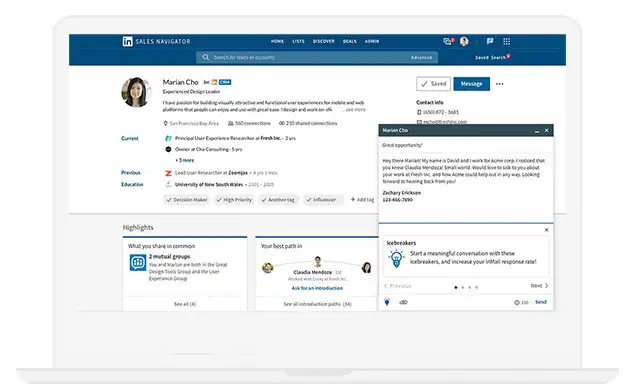
You can send a personal message to interesting leads via the LinkedIn InMails. With LinkedIn Sales Navigator, you can also send InMails to leads with whom you haven’t yet connected. This allows you to send a direct message even if you don’t have any other contact information. It’s a great workaround that lets you operate in compliance with GDPR while still actively prospecting.
According to LinkedIn itself, the response rate for InMails is much higher than when you send a regular email.
Tips for Writing a Good InMail:
- Always make sure to include a good subject line. For example, mention an update on the lead's LinkedIn profile.
- Include a clear call to action.
- Keep your writing brief and to the point, with a focus on mobile reading.
- Avoid the direct sales pitch, because it's a turn-off.
Share documents, presentations, and videos via Smart Links / PointDrive
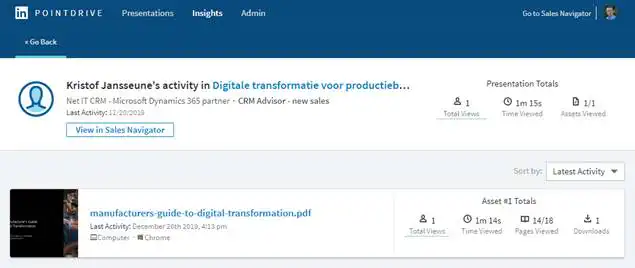
Through LinkedIn Sales Navigator Easily share documents, presentations, and YouTube videos with Smart Links / PointDrive. You can also see who has viewed the content and whether anyone has shared your content with people in their LinkedIn network (see Smart Links / PointDrive Insights).
Part of your daily routine
For an effective social selling strategy, incorporate LinkedIn Sales Navigator into your daily routine. Check the following regularly:
- the “Recommended Leads” to further refine your LinkedIn lists.
- the “Changed Jobs“-list to connect with new decision-makers.".
- “”Shared content" from Accounts & Leads to keep track of relevant developments, see what interests them, what kinds of articles they share, and what’s on their minds. Try to casually catch a lead’s attention by liking shared content, leaving a comment, or tagging someone in your network who might find the content interesting. Also, share an update or article yourself from time to time to build your reputation as an ‘advisor.’.
- “Who’s Viewed” and find out who's viewed your profile and … “return the favor” .
- automatic suggestions from LinkedIn for connections, recent activity, LinkedIn groups, etc.
Synchronize with Microsoft Dynamics 365
You can connect your Dynamics 365 environment to LinkedIn. The specific Microsoft solution “Relationship Sales” integrates LinkedIn Sales Navigator with the Microsoft Dynamics 365 Sales App. Thanks to the automatic CRM sync, you can view LinkedIn data in Microsoft Dynamics 365 and click directly through to a specific LinkedIn profile. You can also access your own InMails and LinkedIn Notes in Dynamics 365.
How do I set it up?
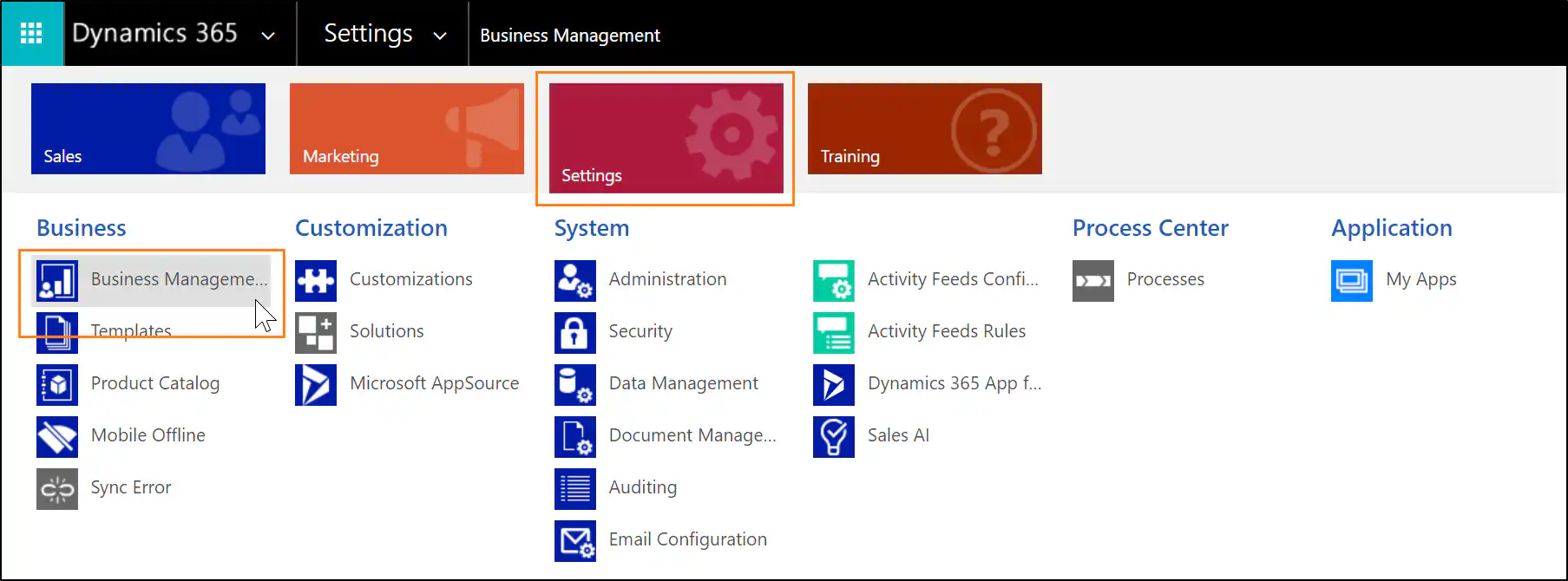
STEP 1: Install the CRM Widget in Microsoft Dynamics 365 >
Go to Settings > Business Management
More info:
- htps://docs.microsoft.com/nl-nl/dynamics365/linkedin/install-sales-navigator
- PDF download: MS Dynamics CRM Sync Guide
STEP 2: Set up CRM Sync.Go to your LLinkedIn Sales Navigator > Admin > Admin Settings > CRM Settings > CRM Sync


