
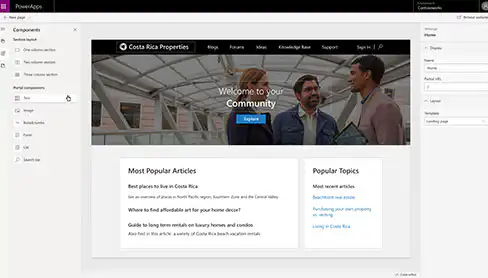
In Microsoft Dynamics 365, you undoubtedly manage data that would also be of interest to customers or partners to view or edit. For customers, for example, this might include:
- submit and follow up on a new application;
- review and approve a quote;
- Read informational articles about products, common issues, and frequently asked questions;
- interactions with customers and even among customers themselves (community).
Of course, in addition to customers, you can also grant business partners access to your portal. For example, to exchange information about a business opportunity or a project. A portal can even be useful for your own employees, especially if not all employees in your organization have access to Dynamics 365.
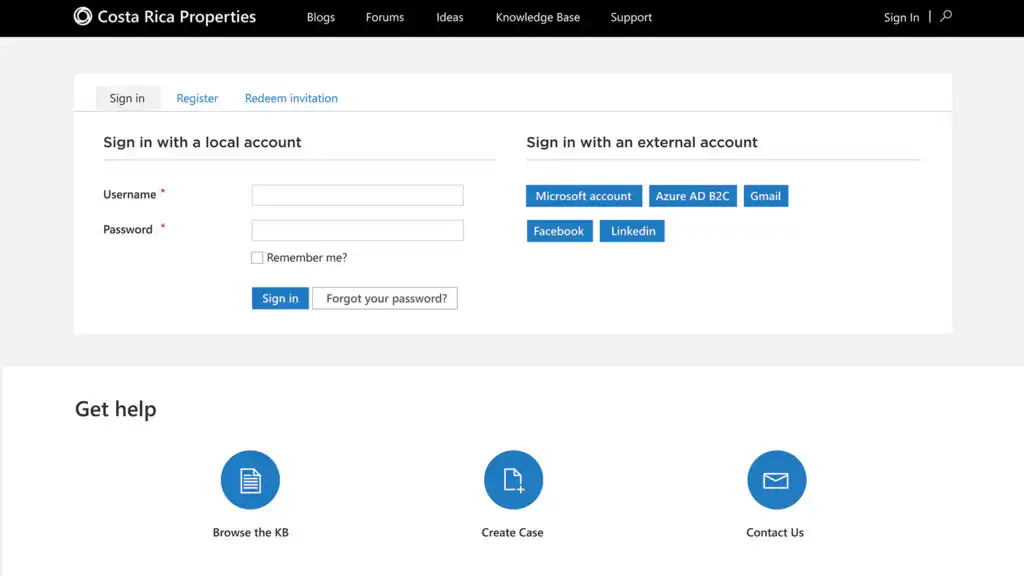
With a Microsoft Power Apps Portal provides internal and external users Secure access to specific Dynamics 365 data. There are several options for securing access to your portal. You can set up user authentication through Azure, Active Directory, B2C, and Okta, and if you’d like, you can even do so through social media accounts such as LinkedIn, Microsoft, Facebook, and Google.
Build a portal without needing developers
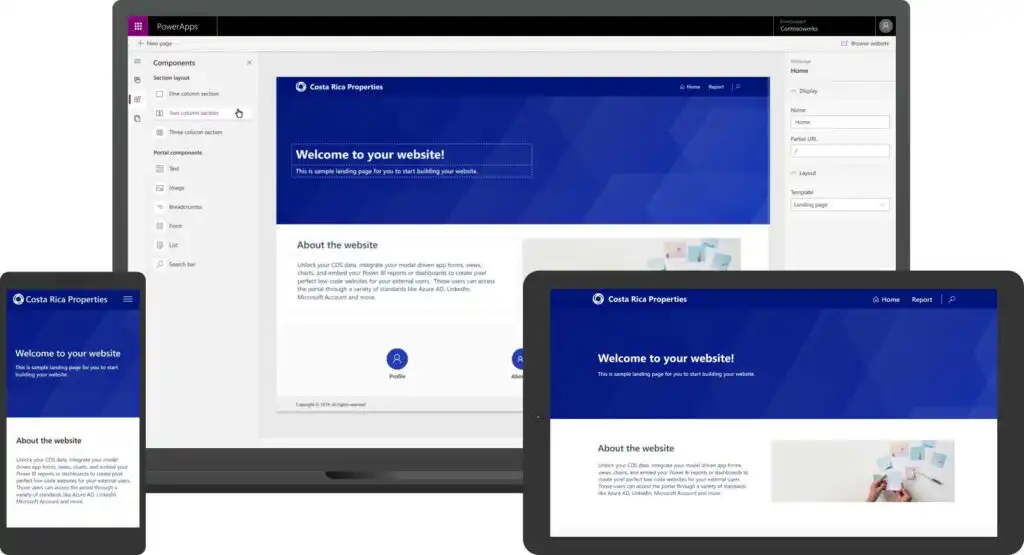
With Microsoft Power Apps Portals, you can build a portal website without any coding knowledge. You choose a template, specify the name, URL, and language, and use ready-to-use interactive components to securely make data available.
You can start either with a blank Power Apps portal, or choose from one of the existing portal templates designed for specific purposes, such as:
- Community portal: for informational articles, blogs, forums, ideas, comments, and reviews.
- Customer self-service portal: to track support cases on your own, to provide feedback, and to access knowledge base articles.
- Employee self-service portal: for how-to articles and streamlining common tasks.
- Partner Portal: for collaborating on opportunities and for real-time access to shared activities. Add-ons are also available for this type of portal for Dynamics 365 Field Service or Dynamics 365 Project Service.
- Custom portal (Dynamics 365 Supply Chain Management, preview): This is an externally-facing B2B website for placing orders.
- Event portal: For publication events, registration for one or more sessions.
So, before you build the portal website, you must first determine who your target audience is (customers, partners, or employees) and what the specific business requirements are.
You can then customize each portal template using various configurable site settings. This allows you to set the background style, text color, and layout width to your liking.
Setting up your portal website using a Power Apps portal is specifically designed to make it as easy as possible:
- You create pages and manage the website navigation and menu structure;
- On the pages, you can add titles, text, images, and downloadable files;
- this includes support for multiple languages and a global site search;
- You can customize everything to match your own brand identity by choosing colors and text styles;
- Next, add (interactive) components to view and edit Dynamics 365 data. You decide who can view or edit what;
- In addition, there are integration options with SharePoint to make documents available and to Power BI to publish reports on your portal website.
Although the Power Apps portal is designed to make setup as easy as possible for non-technical users, it’s also important to note that your portal website can, of course, be expanded through custom development.
Provide secure access to the portal
All data you use on the portal is protected via the Microsoft Dataverse Security Model. With a Power Apps portal, you can manage access for contacts from your Dynamics 365 or Power Apps environment.
- You decide how your users can log in—such as through a Microsoft account, LinkedIn, or other services.
- You assign roles to each portal user, thereby determining who can view and edit what.
All interactions and actions performed by a portal user are linked to the Contact record in Microsoft Dynamics 365.
Integrate all your data
It is possible to integrate a Power Apps portal with, among others,. Microsoft Power BI, Microsoft Power Automate and Microsoft SharePoint. This allows you to expand the portal with model-driven forms, views, lists, charts, and dashboards. In short, everything you need is available to set up a customer portal in the most efficient way possible.


