

In Microsoft Dynamics 365, you can quickly find information about companies, contacts, potential customers, and more using the convenient search feature “Relevance Search” or “Search by relevance”.
“Search by Relevance” uses Microsoft Azure, which allows searches to be performed outside the Dynamics 365 environment. This is a major advantage over the other two search functions in Dynamics 365—“Quick Search” and “Advanced Search”—and delivers better search results. This is especially true if you’re not sure exactly where to quickly find information in your business applications.
What are the other benefits of “Search by relevance”?
- You'll receive fast and comprehensive Search results for multiple entities in a single list, sorted by relevance. The search is therefore not limited to a specific entity, as it is with “Quick Search.”.
- Matches are found for every word in the search term in every field within the entity. These matches may also include inflected forms, such as ‘stroom,’ ‘stromen,’ or ‘stroomde.’.
- Documents stored in Microsoft Dataverse can also be searched, as can documents attached to notes, emails, or appointments.
- With a set of filters and facets, you can dig deeper into the search results without having to refine your search over and over again.
- You can search for records that have been shared with you as well as records that you own.
A new version of this specific search feature has been available since November 2020. To use this updated “Search by Relevance” feature, your system administrator must first enable it in the Power Platform admin center. For more information, visit the following webpage: https://docs.microsoft.com/nl-nl/power-platform/admin/configure-relevance-search-organization
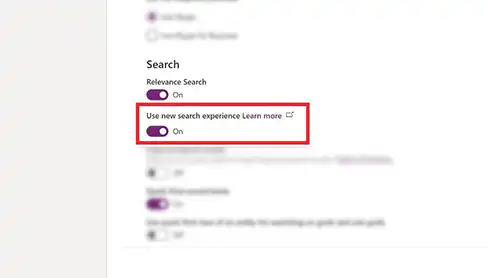
Once the “Search by Relevance” feature is enabled, you can use it in all Dynamics 365 apps and all model-driven Power Apps.
What's New?
1. A clearer search bar
The search bar is now located at the top of every page in your app. It is always available so you can start a new search and quickly find the information you're looking for.
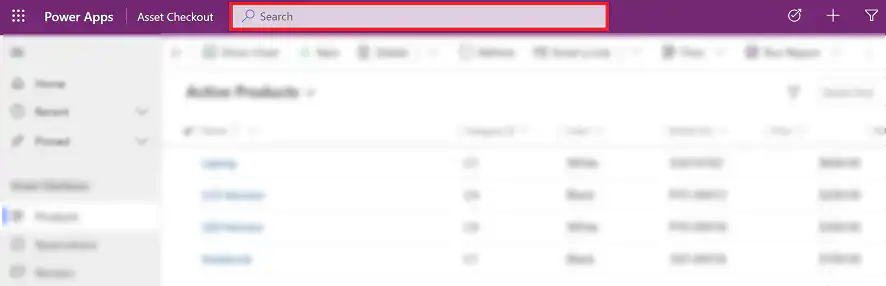
2. No search is required to view recent rows
When you click in the search box, you'll immediately see all your recent searches and recently opened rows.
The recently opened rows are also grouped by table type, so you can quickly review and understand the list of results.
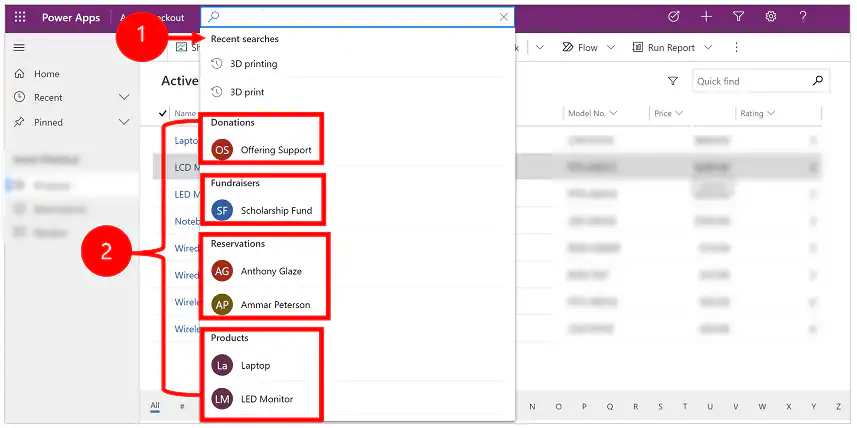
3. Quick display of suggestions
As you type in the search box, search results are suggested.

4. Improved display of search results
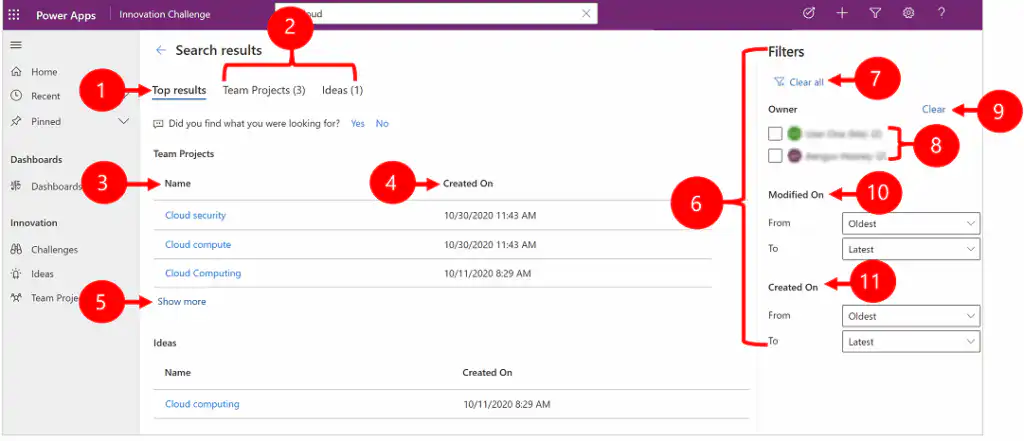
The search results display is now more organized and consists of several tabs. The ‘Top Results’ tab opens automatically first and shows the 20 best results for your search query, with rows grouped by entity / table. The other tabs allow you to zoom in on a specific entity, such as “Team Projects” in the example below. The filter panel is updated each time to display the set of filters and facets relevant to that specific entity. These filters and facets allow you to dive deeper into the data without having to constantly change the search parameters.
** In addition to “Search by Relevance,” you can also use “Quick Search” and “Advanced Search.” You can find a comparison on this webpage: Search Options in Microsoft Dataverse – Power Apps | Microsoft Docs


