By following the steps below, you can view your open and resolved tickets in the portal.
1. Log in with your credentials at Exact and Business Cloud Portal. Don't have login credentials yet? Read here how to request access to the portal.
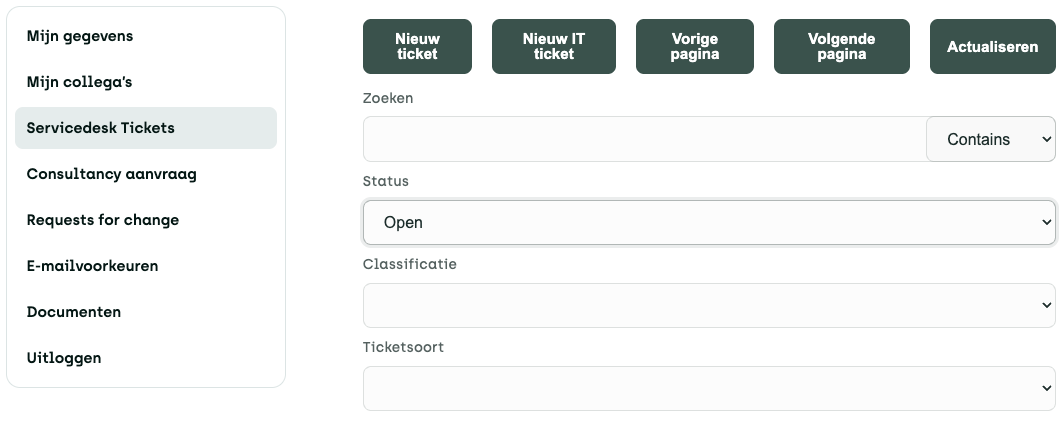
2. In the menu on the left, click ‘Service Desk’ (see screenshot below).
3. The Service Desk screen displays the current open tickets by default. Would you like to see the closed tickets? Click the arrow next to ‘Open’ and select ‘Closed.’ Selecting the blank option will display all tickets.
4. In the search bar, you can search by ticket number or ticket description, if desired.
5. In the "Status" column, you'll see four symbols:
- An open clasp: Your ticket is still being processed.
- A locked latch: Your ticket has been responded to by the Service Desk.
- A blinking exclamation mark: Your ticket has been updated, and you are being asked to take action.
- A little flag: After a ticket has been closed, you can decide for yourself whether you are satisfied with the response you received. If you are satisfied, you can ‘mark’ the ticket as resolved. If your issue has not been fully resolved, you can use the ‘Reopen’ button to resubmit your ticket to the Service Desk.
If this doesn't fully answer your question, please contact our Service Desk at 088 411 42 00 or ask us your question portal. Do you have any more questions about the portal? Then click here.