Do you have an additional or revised request regarding a current project or a project that was completed previously? If so, follow the steps below to submit a change request through the portal.
1. Log in with your credentials at Exact and Business Cloud Portal. Don't have login credentials yet? Read here how to request access to the portal.
2. In the menu on the left, click ‘Request for Change.’ On this page, you’ll see all your (pending) change requests.
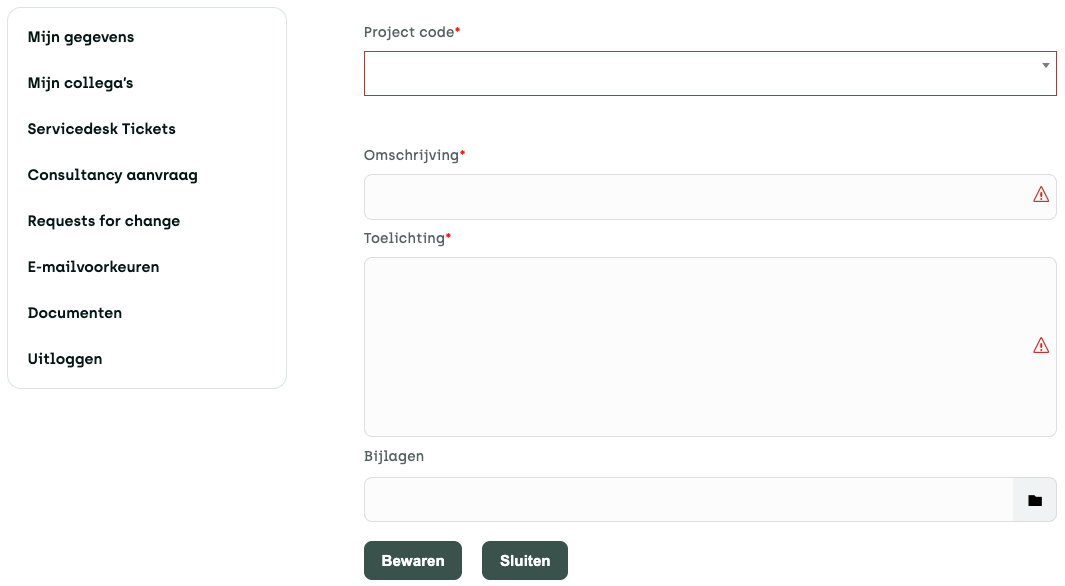
3. Next, click the ‘New’ button. A new screen will open (see screenshot below).
3. Please fill in the fields below:
- Project code: Select the project to which your change request applies.
- Description: In this field, describe the nature of your change.
- Explanation: Please explain your request for changes as clearly as possible.
- Attachment (optional): If necessary, attach a screenshot or document to clarify your explanation.
4. Click the ‘Save’ button to submit your change request.
If this doesn't fully answer your question, please contact our Service Desk at 088 411 42 00 or ask us your question portal. Do you have any more questions about the portal? Then click here.