
If you see one of the following messages: ‘ACCOUNT HAS NOT BEEN VERIFIED‘, ‘Unlicensed product‘ or ‘Non-commercial use‘If you receive this message in Microsoft (Office) 365, it means your account hasn't been activated properly. In this FAQ, we'll explain how to activate it correctly.".
Step 1. Log in with the correct account
You may be signed in with the wrong account—for example, a personal account that doesn't have a Microsoft 365 subscription. By signing in to Microsoft 365 You can check whether your Microsoft account is linked. If it isn't linked, you simply won't be able to sign in; in that case, proceed to step 2.
Step 2. Check for multiple copies of Office
Activation may fail if you have multiple copies of Office installed. To activate the software, you must uninstall all versions of Office that you are not using.
1. Go to Start > Control Panel > Programs and Features
2. In the “Search Programs and Features” box (top right corner), search for the word “Office.” You may see multiple versions of Office listed here:
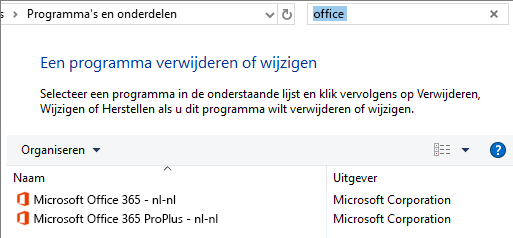
If you see one or more versions listed here, right-click the version you're not using and select Delete. Do you see only one version? If so, proceed to step 3.
3. Once the uninstallation is complete, restart the computer.
4. Open an Office app (such as Outlook or Word) and sign in when prompted.
Still haven't activated Office 365? If so, proceed to step 3.
Step 3. Troubleshoot Office Activation Issues
If you're still unable to activate Office, try running an online repair using the Office 365 Recovery Wizard and follow the steps.