
With Multi-Factor Authentication (MFA), you add an extra layer of authentication to log in to Microsoft Office 365. If an administrator has enabled MFA in the Office Admin Portal, the employee must do the following to use MFA:
Step 1. Download the Authenticator app
Download the Microsoft Authenticator app from Google Play Store or Apple App Store.
Step 2. Authenticator Setup
Go to this page (Set up Authenticator) and sign in with your existing Office 365 account. After signing in, Microsoft will ask for additional security verification:
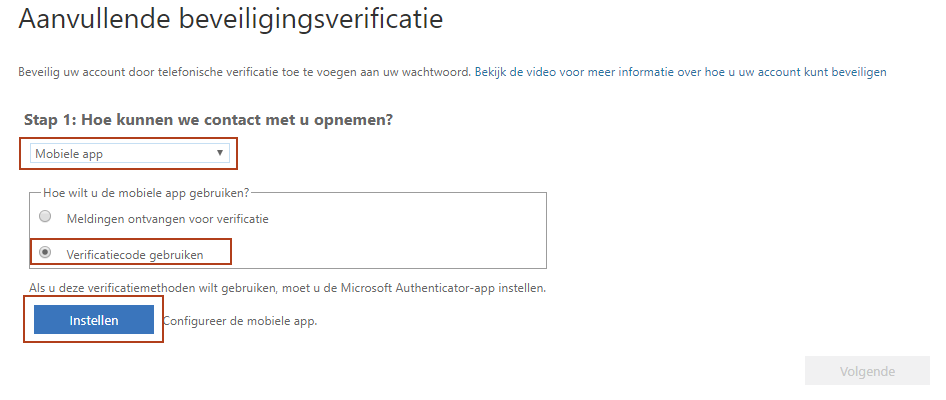
Here, select: Mobile App > Use Verification Code, and then tap Set Up.
Step 3. Activate on your smartphone
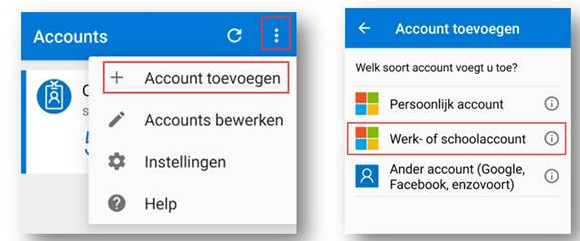
Switch to your smartphone and open the Microsoft Authenticator app. Tap the menu in the top-right corner (three dots) > Add account > Work or school account.
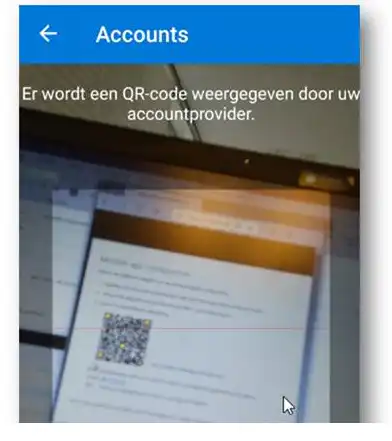
You are asked to use your smartphone to scan the QR code on your PC or laptop screen:
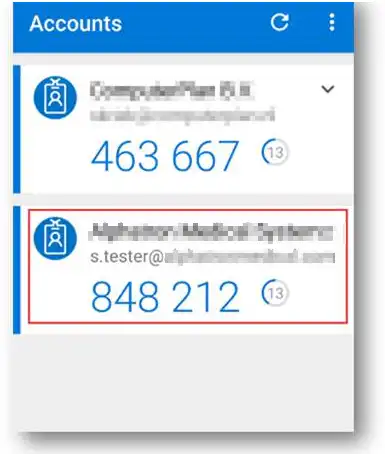
Your account has now been added to the Microsoft Authenticator app and will continue to generate new, one-time codes for MFA:
You now need to set up Outlook (once per device) using a code. In webmail You have to enter a code every time.