
Setting up email via Office 365 on an Android smartphone involves the following six steps:
Step 1. Update the Gmail app to the latest version
Open the Google Play Store app on your phone. Type ‘Gmail’ in the search bar, and then select Update. If the update option isn't available, you already have the latest version.
Step 2. Open the Gmail app
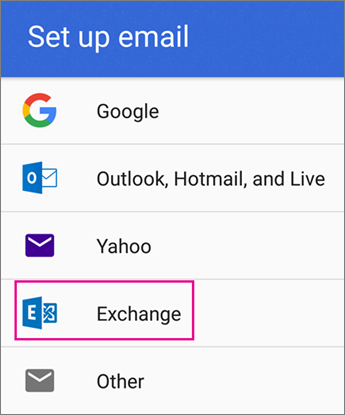
Click the menu icon in the upper-left corner > Settings > Add account > Exchange.
Important: If you have an Outlook.com email address, such as @hotmail.com, and your calendar and contacts are stored there, choose Exchange. So choose NOT for Outlook, Hotmail, and Live, unless you want to set up the account as an IMAP account.
Step 3. Enter your full email address and tap Next
For example, a complete email address such as naam@hotmail.com or naam@jouwdomein.opmicrosoft.com. After entering your email address, enter your password and click "Next" again.
Step 4. Continue through the wizard
Follow any prompts (pop-ups) that appear, including security permissions. You may also be asked to specify synchronization settings and a display name.
If you use Office 365 for Business, you may also be asked to specify additional security options. In that case, select Activate.
Step 5. Activate your inbox
Now go to your inbox. If you see a message from ‘Microsoft Account’ with a subject line that starts with ‘Action Required,’ follow these steps (Note: (If you do not receive this message but all your email messages are being synced, you do not need to complete these steps):
- Click on the email message to open it.
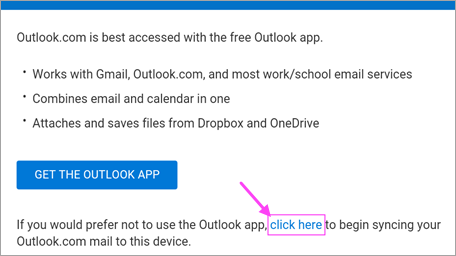
- Click the link Click here If you want to sync with the Gmail app, enable it. If you'd rather download Outlook for Android, click the button.
Step 6. ‘Unable to synchronize calendar and contacts’ message’
If you receive the following message from Gmail: “Unable to sync calendar and contacts,” an additional step is required to sync your calendar and contacts correctly (Note: (If you don't see this, the calendar and contact information will be synced):
- Click on the message: “Unable to sync calendar and contacts”
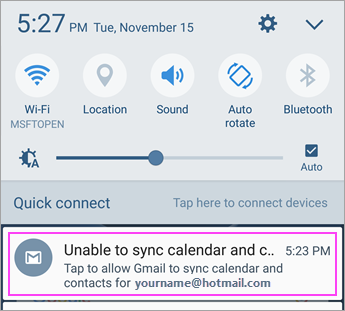
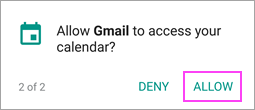
- Gmail is now asking for permission to access your account. Tap allow and follow the instructions.
You're all set, and your email via Microsoft Office 365 is now synced with your Android device.