
In 3 steps, we'll explain how to change the password for your Microsoft Office 365 account.
Step 1. Go to Outlook
Go to https://outlook.office.com and log in with your own email address and password
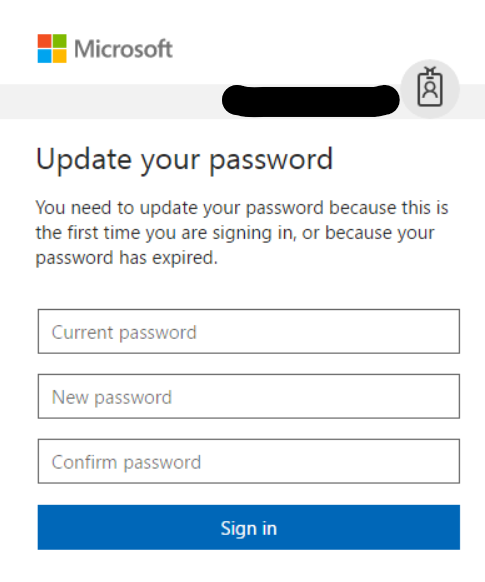
Note: Has your password expired? (If not, proceed to step 2.) If so, the dialog box shown below will appear immediately, prompting you to change it. Enter your current password and your new password, and then click Log In to change your password.
Step 2. Go to Profile
You are now logged in to your email account. Click on your Profile and then click on My Account to go to the Office 365 profile settings.
Step 3. Go to Security and Privacy
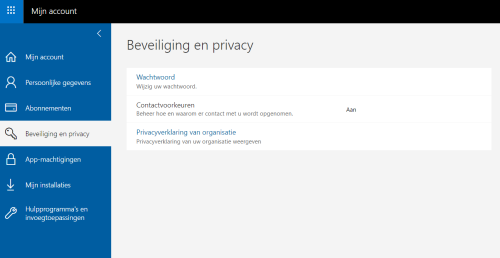
Next, navigate to Security and Privacy and click on it there Password to change your password. Follow the on-screen instructions to change your password.
Please note: After changing your Microsoft Office 365 password, you will be logged out of any devices (including both your phone and computer) where you were logged in with your old password. You will need to log in again with your new password to regain access.