

Security Management is extremely important due to regulations such as the GDPR and the rise of cybercrime. Every CRM administrator is expected to take the necessary steps to ensure data security. Based on our experience, we offer 5 tips for CRM administrators to help them Logical and easy-to-maintain management of security roles in Microsoft Dynamics 365.
In this article, we assume that The reader has the necessary knowledge of the Microsoft Dynamics 365 security model. You can view the complete documentation on security management in Dynamics 365 on the following Microsoft website: docs.microsoft.com/en-us/dynamics365/customer-engagement/admin/manage-security-users-and-teams
TIP #1. “Teams” are more flexible than “Business Units”
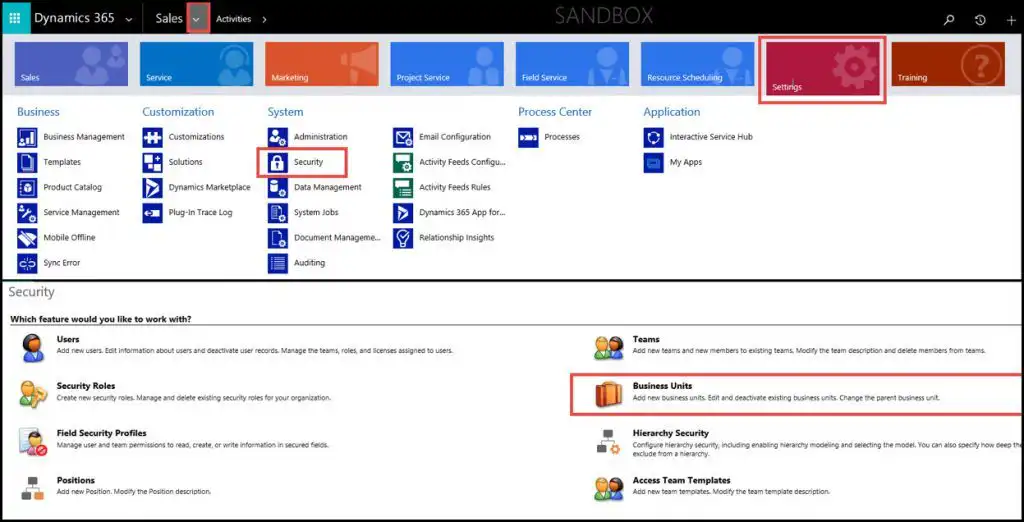
“Business Units” are very effective at isolating data between different departments within your organization. But think carefully before using business units, because doing so creates a security structure that lacks flexibility.
Does it ever happen that an employee from a certain department temporarily works alongside colleagues from another department? If so, it’s better to organize your users into “Teams”. “”Teams" provide the flexibility to temporarily add a CRM user as a member of a team. Every user in that Team will then automatically inherit the Team's user permissions. Once the helpful colleague's temporary assignment has ended, you can remove him or her from the Team.
TIP #2. Do not replicate the organizational structure using “Business Units” in CRM
Contrary to what you might expect: Your organizational structure rarely corresponds exactly to the business unit structure designated for your CRM organization. Why is that? It’s often the case that different departments work together using the same data. This happens when a business process spans multiple departments within your organization.
Business Units You should think of it more as a way to create logical partitions in your CRM database. One useful application of Business Units is to separate data among groups of employees who do not collaborate on the same data. For example, if you want to keep data on sales opportunities separate by country or region.
TIP #3. A hierarchical set of security roles simplifies management
In Dynamics 365, you can Assign multiple security roles to a single user, with the most permissive security role taking precedence. For example, if you combine a security role that grants you permission to view only your own contacts with a security role that grants you permission to view all contacts, the result is that you will see all contacts.
This feature of security roles allows you to organize security roles within your organization in a hierarchical manner. This allows you to create a “Base Role” with the permissions that every CRM user must have. You can then create an additional security role for each “responsibility” within the work organization, combining the extra functional capabilities that person needs to perform their job. For example: a Base Role + a Sales Representative Role.
Typically, management within an organization is granted additional security permissions in Dynamics 365. This person, who leads a team, needs an overview and/or additional security permissions to view management reports. A Sales Manager, for example, is assigned three cumulative security roles: Base Role + Sales Representative Role + Sales Manager Role.
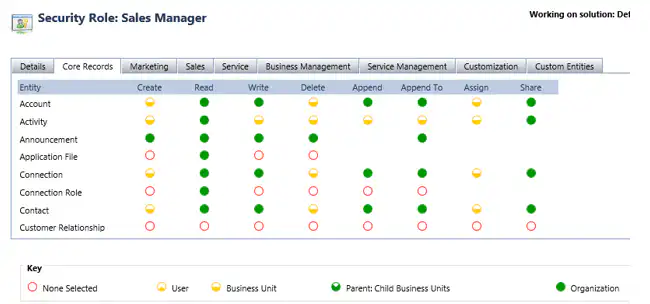
With a hierarchical system like this, maintaining security for CRM users is much easier because security permissions are grouped logically. In this case, a security role corresponds to the responsibilities a person has. This way, as a CRM administrator, you avoid having to set the same permissions multiple times across multiple roles.
When a new employee joins the company or someone changes roles, it is easy for the CRM administrator to update the corresponding security roles. Similarly, when new functionality is added to the CRM application, the CRM administrator can easily make that functionality accessible by granting additional permissions to the security role that corresponds to that employee’s job profile. For example, if an additional module is added to CRM for Sales, you add the necessary permissions to the sales roles. Is new functionality being introduced in CRM that everyone will need to use? Then simply add the additional permissions to the Basic Role.
TIP #4. Be careful with Delete permissions
In general, we use the the principle that CRM users are not intended to be able to delete data. After all, you still want to be able to generate reports based on all the data in the CRM. The main problem with delete permissions is that records can be deleted accidentally. In that case, a ‘disaster recovery’ is required, which is difficult and time-consuming.
The alternative to “Delete” is “Deactivate.”. This ensures that you, as a user, will no longer see the deactivated record, because deactivated records are not displayed in view lists. If necessary, you can still look up this record, because it hasn't actually disappeared.
In exceptional cases, you could grant users the permission to delete records they created themselves. We also recommend centralizing Delete permissions with one or a few individuals who are well-versed in the technical implications regarding the deletion of CRM data.
TIP #5. Sharing isn't always caring
There may be instances where an employee needs to work on a specific record to which the CRM user does not have access rights. In that case, you can “share” that specific record. By doing so, you are essentially creating “loopholes” in the normal security rules. Our advice, therefore, is to limit the “sharing” of records, because every “sharing” setting is an additional filter that your CRM system must take into account with every data manipulation and retrieval. If you use Sharing systematically, it will begin to impact the performance of your CRM system over time. So: Share, but handle with care.


