
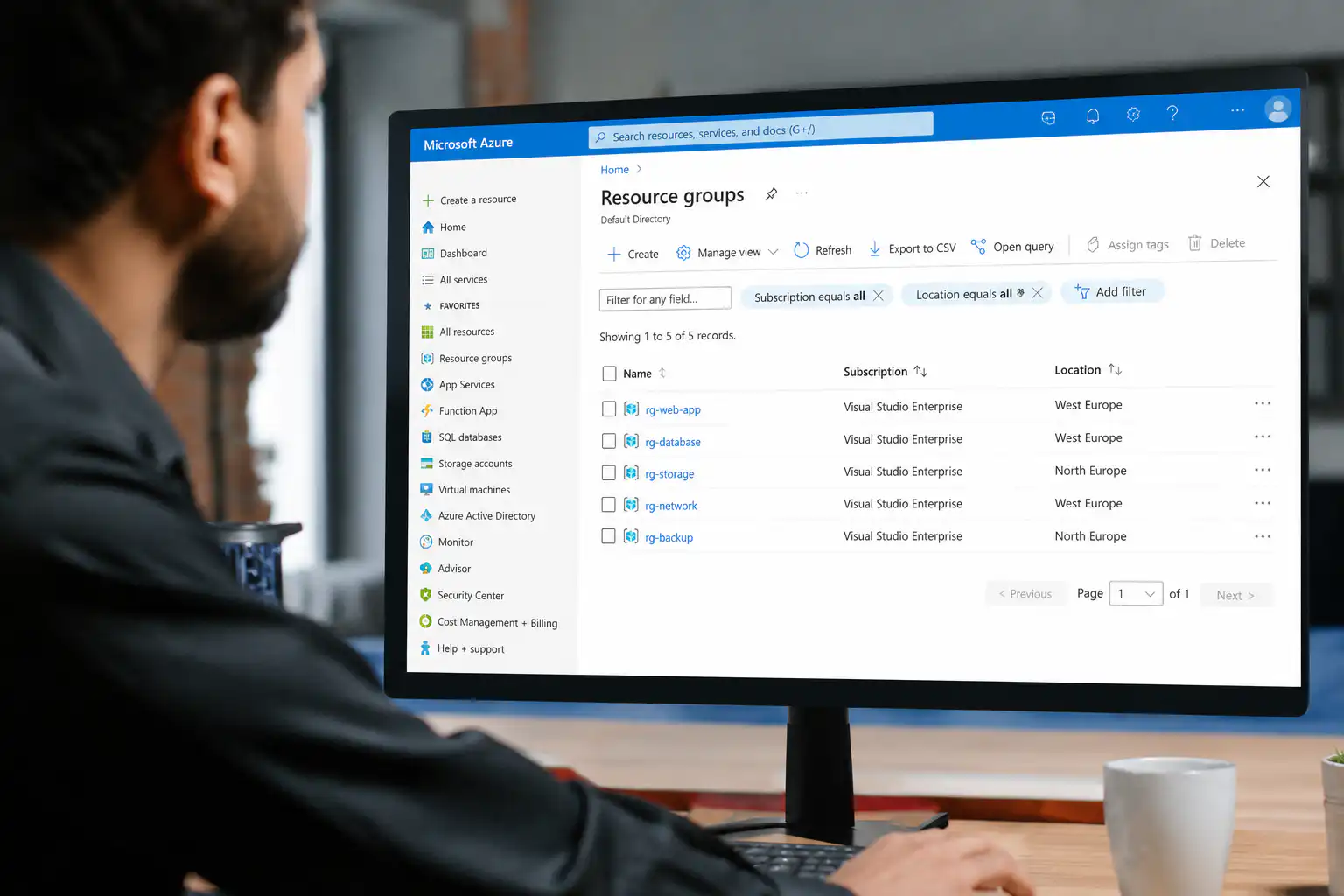
To manage your Azure environment, you can use the GUI via the Azure Portal. This works very well for manual actions. But for a BI environment, where processes often run overnight and where you need to scale up or pause dynamically, you’ll want to automate these tasks.
For example:
- Temporarily scaling up an Azure SQL Database before a heavy load process begins.
- Pausing a Fabric Capacity outside of business hours.
- Retrieving the logs for your Azure Data Factory pipelines.
To automate this, you can use the Azure Resource Manager (ARM) REST API. In this blog post, I discuss
- How ARM Authorization Works.
- How ARM endpoints are structured.
- Where you can run the orchestrator for your processes.
- Common BI Use Cases in a Data-Driven Organization
1. Authorization for Azure Resource Manager
To authorize access, use a Bearer token that you request for the ARM resource
You can retrieve a token for 3 types of users
- Named user: You manually retrieve a token via MFA. This works well for testing your code.
- App Registration: Suitable if you want to automate processes outside of Azure.
- Managed Identity: You don't need to manage credentials, and most Azure resources include built-in functionality for authorization via Managed Identity.
If you're running orchestration within an Azure resource, the Managed Identity is the preferred option.
Permissions in Entra ID
In Azure Entra ID, you grant the user you’re using the appropriate permissions for the Azure resource. These permissions depend on the resource you want to manage. The token also includes a reference to the tenant from which it originates, so you don’t need to specify this separately in your ARM call.
The default role with the fewest privileges that you can use is listed under the  logo. Often, this will be the Contributor role because there are no standard roles with fewer privileges that can perform these tasks. It is also possible to set up a custom role for this purpose.
2. Setting Up an Azure Resource Manager Endpoint
ARM has a separate endpoint for each resource. However, the structure of the endpoints is always the same:
https://management.azure.com
/subscriptions/{subscriptionId}
/resourceGroups/{resourceGroupName}
/{Endpoint you want to manage}
?api-version={endpoint version}
Use the base URL to point to the management endpoint. Then specify the subscription and resource group where your resource is located. Next, include a resource-specific portion for your endpoint. Finally, specify the API version you want to use. Each resource has its own API version, which you can easily look up in the Microsoft documentation.
You send a GET, POST, PUT, PATCH or DELETE request, depending on the operation. For POST, PUT, and PATCH, you include the additional parameters in the request body.
3. Orchestrator for managing Azure Resource Manager
You can control ARM using any method that allows you to make an API call. Within Azure, the most common ways to do this are through Azure Data Factory, Azure Functions, or Azure Automation Accounts. The choice of where to manage the process depends on your goals and the experience of your developers.
Azure Data Factory
With the Azure Data Factory graphical UI, you can create pipelines that use the web activity can be used for ARM calls. With the built-in scheduler, you can schedule the pipelines.
As long as your orchestrator doesn't get too complex, this can be a good option. For complex logic, it's better to create your own script in, for example, an Azure Automation Account runbook.
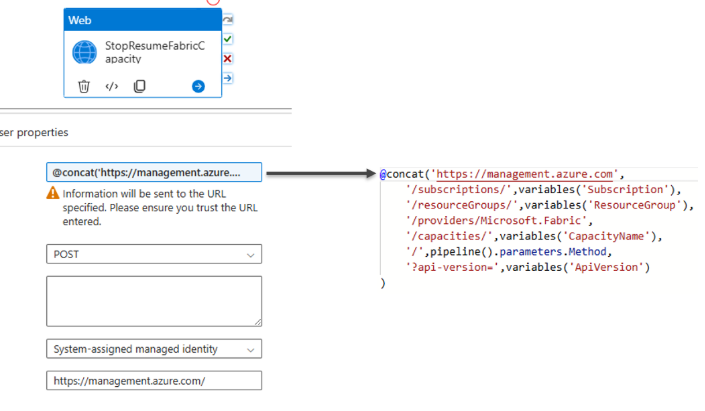
Azure Data Factory Example
Fabric Capacity -> Contributor
Or custom roll with
- Microsoft.Fabric/capacities/read
- Microsoft.Fabric/capacities/write
- Microsoft.Fabric/capacities/suspend/action
- Microsoft.Fabric/capacities/resume/action
Starting or pausing a Fabric Capacity. In Azure Data Factory, we can do this using a web activity set up using Managed Identity.
Azure Automation Account
Automation Accounts are ideal for implementing flexible, code-driven automation. A good option is to create your automation in PowerShell runbooks.
- Az modules are available as standard
- Large library of additional modules available for download (be sure to select the correct PowerShell version)
- You can easily authenticate via Managed Identity using:
Connect-AzAccount -IdentityAfter that, the current session is connected to Azure, and you can, for example, call ARM endpoints using:
Invoke-AzRestMethodThis is a wrapper method for making REST calls that automatically handles authorization and resource references for a connected session.
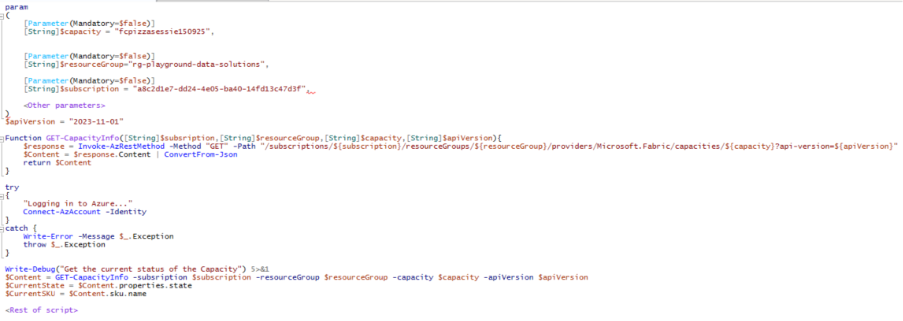
Sample Automation Account
Fabric Capacity -> Contributor
Or custom roll with
- Microsoft.Fabric/capacities/read
- Microsoft.Fabric/capacities/write
- Microsoft.Fabric/capacities/suspend/action
- Microsoft.Fabric/capacities/resume/action
Managing Fabric Capacity. Depending on the current status of the capacity, we may want to start it, stop it, or scale it up or down. We can then take the following steps.
- Sign in to the session using the Automation account's Managed Identity.
- Retrieve the current status of the Fabric Capacity using an ARM GET request.
- This status includes, among other things, the current state and SKU, which are used as parameters in the rest of our script.
4. Azure Function
When you On-Demand Processes or short tasks If you want to run a script, you can also use an Azure Function. Here, you can run similar PowerShell scripts. Be sure to check out my other blog post as well to see an example of this.
5. BI Use Cases
At Alistar, we use ARM across many BI environments to reduce costs, speed up processes, and ensure resources can scale flexibly. Below is a selection of common scenarios.
Just to recap, the basis of every endpoint is:
https://management.azure.com/subscriptions/{subscriptionId}/
resourceGroups/{resourceGroupName}/providers
In the examples, I will only mention the resource-specific extensions to these concepts.
And as a best practice:
➡️ Always start with a GET request to check the current status of your resource before submitting a change request. That way, you'll also know whether it's worth doing.
Use Case 1: Scaling Azure SQL Database Up and Down
Azure SQL Server -> Contributor
Or custom roll with
- Microsoft.Sql/servers/databases/read
- Microsoft.Sql/servers/databases/write
Data from the various source systems is often loaded into a data warehouse overnight. By the time the company begins operations, this data has already been further processed and loaded into one or more semantic models.
During these ETL processes, you may need more computing power and storage capacity for the processes and transactional logs. After the load processes are complete, we can scale back down.
Endpoint
PUT /Microsoft.Sql/servers/{server}/databases/{Database}?api-version=2021-11-01'Body:
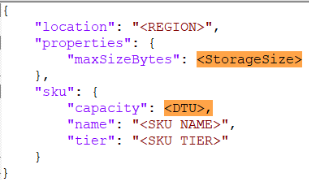
This example uses the DTU model. For a vCores model, use a similar call.
Use Case 2: Pausing, Resuming, and Scaling Fabric Capacity
Fabric Capacity -> Contributor
Or custom roll with
- Microsoft.Fabric/capacities/read
- Microsoft.Fabric/capacities/write
- Microsoft.Fabric/capacities/suspend/action
- Microsoft.Fabric/capacities/resume/action
If you run parts of your Power BI environment under a Fabric Capacity license, you have a shared resource pool that all processes draw from. As a result, you may need to temporarily scale up the Fabric Capacity if, for example, you’re running heavy ETL processes in Fabric Pipelines. And if you’re running on an F32 SKU or lower, it can also be helpful to pause the Capacity when it’s not needed to save costs. Just be aware that anything running under a paused Fabric Capacity won’t work until it’s reactivated. So you’ll need to manage your ARM operations from another location in the meantime.
Endpoint
Pause / Resume
POST /Microsoft.Fabric/capacities/{capacity}/{state}?api-version=2023-11-01{state} = suspend to pause or summary to resume
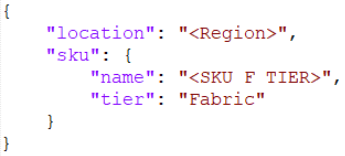
Bowls
PATCH /Microsoft.Fabric/capacities/{capacityName}?api-version=2023-11-01Body:
Use Case 3: Starting, Pausing, and Scaling Azure Analysis Services
Azure Analysis Services -> Contributor
Or custom roll with
- Microsoft.AnalysisServices/servers/read
- Microsoft.AnalysisServices/servers/suspend/action
- Microsoft.AnalysisServices/servers/resume/action
- Microsoft.AnalysisServices/servers/write
When your model is hosted in Azure Analysis Services, costs can quickly add up. It’s therefore a good idea to pause the instance when it’s not in use. Depending on the semantic models you host and the loading strategy you choose, there may also be a peak load on the available memory of Analysis Services while your model is loading. It may then be necessary to temporarily scale up the instance during the loading process.
Endpoints
Pause / Resume
POST /Microsoft.AnalysisServices/servers/{serverName}/{state}?api-version=2017-08-01{state} = suspend to pause or summary to resume
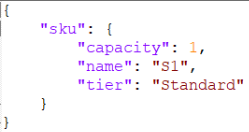
Change SKU
PATCH /Microsoft.AnalysisServices/servers/{serverName}?api-version=2017-08-01Body:
Use Case 4: Retrieving Azure Data Factory pipeline runs
Azure Data Factory -> Data Factory Reader
Or custom roll with
- Microsoft.DataFactory/factories/read
- Microsoft.DataFactory/factories/pipelineruns/read
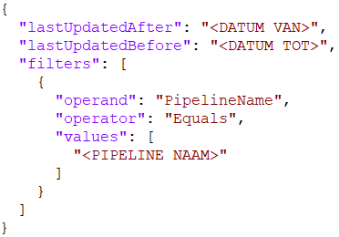
With Azure Data Factory, scheduling is usually handled within the internal scheduler. However, it can be useful to handle some of the scheduling via ARM. For example, to retrieve the logs of the pipelines that have run. In the body, specify the date range you want to retrieve, and you can also filter by specific pipelines, for example.
Endpoint
POST /Microsoft.DataFactory/factories/{factoryName}/queryPipelineRuns?api-version=2018-06-01Body:
6. Conclusion
Azure Resource Manager offers a high degree of flexibility for automating processes in both Azure and Fabric. By making smart use of this, you can
- Reduce costs.
- Organize processes flexibly and at the appropriate level.
- Staying in control of your BI landscape.
Are you curious about the added value Azure Resource Manager can offer your organization? If so, please contact us—we’d be happy to help you explore your options!


