
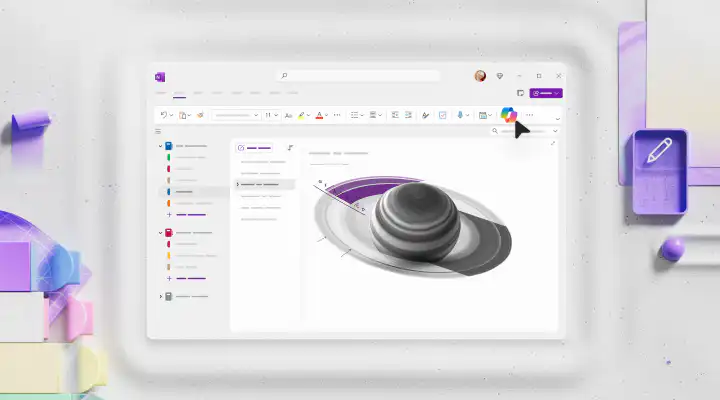
Microsoft Copilot Copilot in OneNote offers a new way to take notes using artificial intelligence (AI). This introduction to Copilot in Microsoft OneNote walks you through the extensive features and capabilities that allow you to create, edit, and summarize notes more efficiently. Copilot combines the power of technology with ease of use to support your writing process, generate content, and help you organize your notes. Discover how you can use Copilot for OneNote as your AI assistant for word processing.
Microsoft Copilot Features in OneNote
With Microsoft Copilot in OneNote, you have access to various features, including:
- Summarizing Notes: Create a summary to quickly analyze your notes.
- Generate to-do lists: Ask Copilot to summarize specific tasks and action items.
- Listing the Pros and Cons: Gain insights from your notes and formulate prompts for actionable information.
- Taking Notes: Copilot helps you analyze transcripts recorded during in-person meetings.
- Brainstorming Ideas: Use Copilot as a creative partner or sounding board when coming up with new ideas.
- Creating Project Plans: Use Copilot to create plans or schedules for large-scale projects.
- Organizing Your Notes: Avoid a jumble of notes and let Copilot help you bring order to the chaos.
- Text Rewriting: Change the length or tone of your notes to come across as more professional or confident.
- Chatting with Copilot: Use Copilot to ask questions about the content of the notes.
How does Microsoft Copilot work in OneNote?
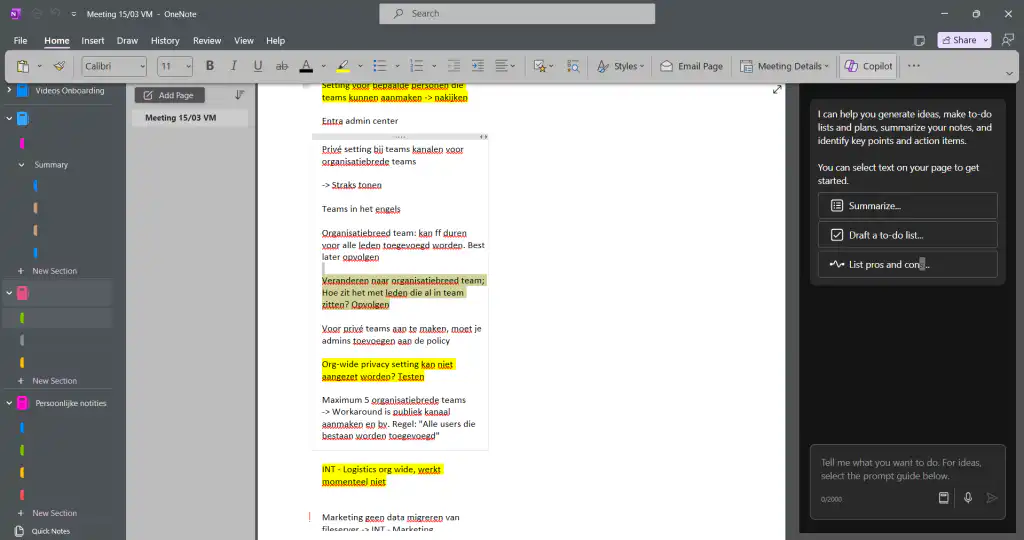
To use Copilot in OneNote, open a new note or select an existing one. Click the Copilot icon on the toolbar, located under the ‘Home’ tab. This will open the Copilot window, where you can enter prompts.
Important: Copilot in OneNote is currently available only through the Windows app.
Summarizing Notes
Do you know that feeling when you open a OneNote page and are overwhelmed by countless notes? With Copilot in OneNote, you can easily bring order to the OneNote chaos. Open the Copilot window and ask Copilot to generate summaries based on your notes, which you can then easily copy into your notes. Try the following prompts in OneNote:
- “Generate a summary of the notes on this page. Organize the summary in chronological order and present the events as a bulleted list.”
- “Summarize the notes about the event in an engaging and lively style.”
Tip: Do you want to summarize only a specific part of your notes? If so, select that section before asking Copilot to create a summary. That way, Copilot will only take the selected text into account.
Generate Action Items
Open the Copilot window to create a structured action item list or to-do list. Here are some prompts you can use:
- “Make a to-do list.”
- “Create a to-do list for the upcoming quarterly meeting.”
- “Create a to-do list based on the notes about the marketing campaign. Include actions for both the launch and the evaluation of the campaign’s performance.”
Listing the Pros and Cons
Gain insights from your notes using Microsoft Copilot. Create your own prompts or use the featured prompt “List the pros and cons“. Below are a few customized prompts you can try out in OneNote. These prompts can help you gain insights and turn your notes into actionable information.
- “Identify what is missing from the project plan on this page and provide suggestions for improvement.”
- “Analyze the pros and cons of my idea and offer alternative perspectives.”
- “Assess how I can strengthen the sales plan and propose specific action items.”
- “Describe the advantages and disadvantages of the Q4 sales strategy and suggest possible improvements.”
- “Provide a critical assessment of the Q1 sales strategy, including recommendations for improvements.”
- “Create a SWOT analysis (Strengths, Weaknesses, Opportunities, Threats) of my idea.”
- “Identify the key action items from the project plan and categorize them by priority.”
Taking Notes During Meetings
Use Copilot in OneNote, just as you would in Teams during your meetings. You’ll also need a transcript of your meeting to use Copilot in OneNote. To do this, go to the toolbar and click “Transcribe” under the ‘Home’ tab. Select the language that will be spoken during the meeting and start the transcription. When the meeting is over, click “Save” and then on “Add to page” to add the transcript to your OneNote. Based on the transcript, you can use the Copilot chat window for various prompts, such as generating summaries, to-do lists, insights, and more.
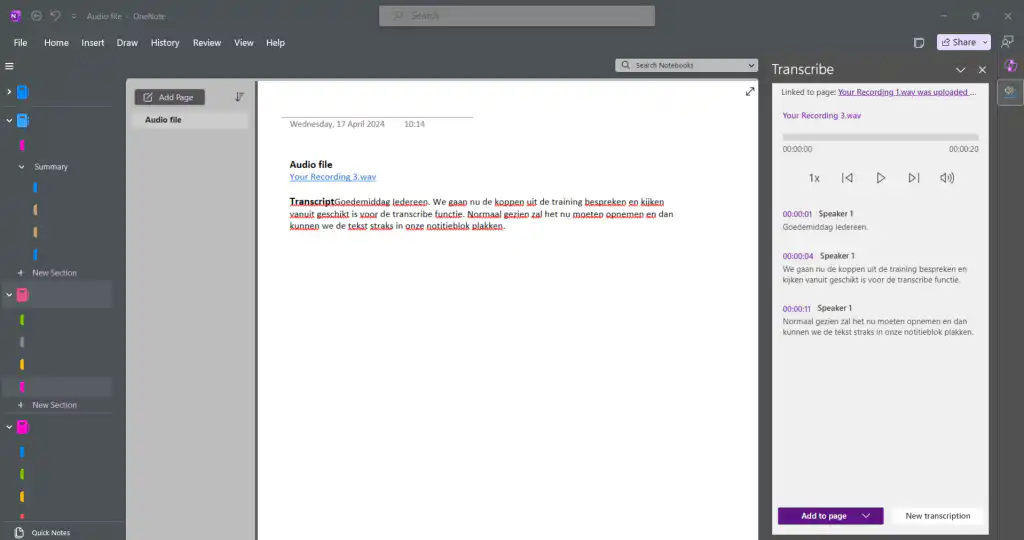
Please note: Copilot currently has difficulty distinguishing between different speakers when everything is recorded through a single microphone. So be sure to check the to-do list to ensure that Copilot assigns the right people to the tasks.
Brainstorming with Copilot
Use Copilot as your creative partner or brainstorming partner. You can use Copilot when you’re starting with a blank page or want to expand on your existing notes. Tap into your creativity and let Copilot inspire you. Open the Copilot window on a blank page or next to your current notes and experiment with the following prompts:
- “I’m looking for inspiration for a motivational speech that emphasizes the value of a growth mindset.”
- “Can you help me come up with creative concepts for a social media campaign for our latest outdoor clothing line?”
- “What are some interesting topics for a blog about personal growth?”
- “Do you have any suggestions for dynamic and interactive exercises for our next team-building event?”
- “Let’s brainstorm together to come up with an innovative product that solves everyday problems.”
For more personal notes, you can also ask Copilot for help:
- “Make a list of fun gift ideas for my sister’s 60th birthday and highlight the top 3 most unique ideas.”
- “Make a list of 15 healthy meals for weeknights.”
Developing a Plan
Another handy tool from Copilot is the ability to create plans and schedules. This is a useful feature, especially when you’re frequently working on large-scale projects. It offers a helping hand when you’re not sure where or how to get started. Copilot to the rescue! It helps you develop and design plans, projects, and campaigns, and supports you in achieving your goals.
Here are a few prompts to try:
- “Create a plan for a team member’s retirement party.”
- “Develop a project plan for a new package tracking app, taking into account the technical requirements and customer feedback listed on this page.”
- “Outline a timeline for implementing the new customer service model.”
- “Develop a strategy for the market launch of our newest product, including pilot launch activities and media announcements.”
Organizing Your Notes
OneNote can sometimes be overwhelming with its jumble of notes. It’s a common scenario—you can’t deny it! Let Copilot be your assistant in bringing order to the chaos. You can ask Copilot to structure your notes using tables, lists, or a logical order. Here are some sample prompts you can use to organize your notes more efficiently:
- “Organize my notes into a table with priorities.”
- “Make a list of the most important points from these notes in order of urgency.”
- “Arrange the information on this page in chronological order.”
- “Create a table listing the pros and cons of Strategy A as described on this page.”
- “Break down the plan for the fundraising event into individual steps.”
- “Rank the objectives for the upcoming fiscal year by priority.”
- “Sort this list of events I have this month by date.”
- “Please organize the notes on this page neatly so I can share them with my colleagues.”
- “Convert the selected text into a bulleted list.”
Rewriting Texts
Just like Copilot in Word, Copilot in OneNote lets you rewrite text. The approach is slightly different. Select the text in your notes that you want to edit. Then open the Copilot window and type the prompt “Rewrite this text”. Copilot will then rephrase your text in the chat window. If you’re satisfied with the result, you can copy the new version and paste it over the original text in your notes. Copilot will not automatically replace the text.
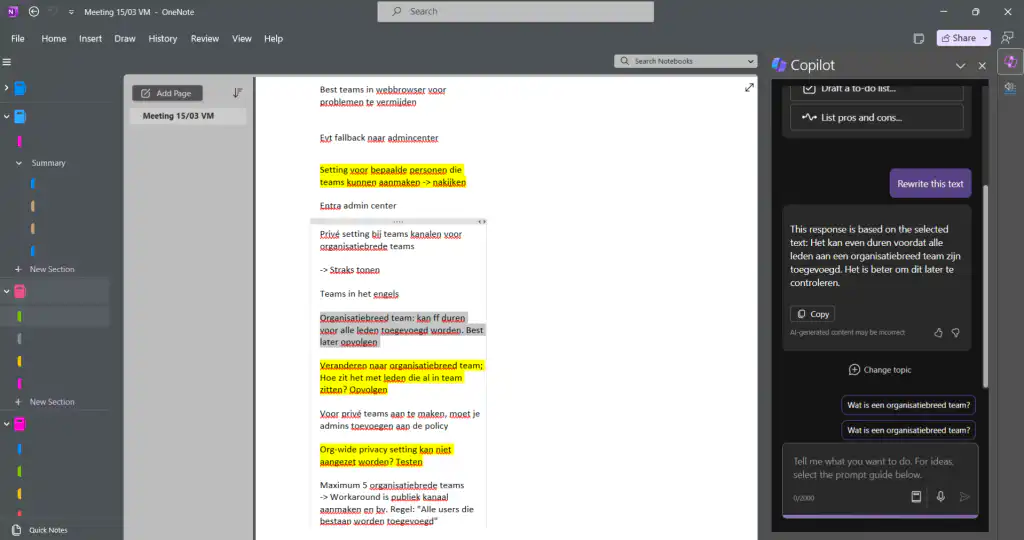
Try the following prompts for rewriting texts:
- “Rewrite the text to give it a more formal and academic tone.”
- “Revise the text to make the argument stronger and more substantiated.”
- “Rewrite the text to make it more concise and to the point.”
Ask Copilot your questions
Ask questions about the content of your notes and quickly revisit them by asking targeted questions. With Copilot as your assistant in OneNote, you can formulate a variety of questions. Experiment with different prompts to see how Copilot can help you. Start with the following suggestions:
- “Search through my notes and highlight specific information that is relevant to my current project.”
- “Please offer specific suggestions for improving the clarity and structure of my notes.”
- “Add new, relevant insights to my notes that are related to the topic.”
- “Identify the tasks from last month’s sprint that still need to be completed.”
- “Highlight the key points on this page for quick reference.”
- “Help me break down my personal goals into achievable steps on this page.”
- “Please review my vacation schedule on this page and let me know if anything is missing.”
- “What does the onboarding process for a new employee look like?”
- “Provide an overview of the tasks from the previous sprint that still require attention.”
- “Identify my contacts for the project and list their responsibilities.”
- “Gather information and tips for someone who is moving to a new city.”
- “Analyze the pros and cons of buying a used car, focusing on reliability and cost.”
Tip: Use the copy icon to add the answer generated by Copilot to your notes. This way, you can place summaries or important action items at the top of your OneNote for a quick overview.
Important: In Copilot in OneNote, it is not yet possible to reference data or documents from other Microsoft 365 applications.
Join the Copilot Community on Reddit
Are you curious about the latest developments and want to deepen your knowledge of Microsoft Copilot? The Copilot Community on Reddit is where enthusiasts come together to share insights, information, prompts, and new updates. It’s a platform where you can not only learn how to get the most out of Copilot but also share your own insights. Visit the Reddit Community and join in on lively discussions.


