
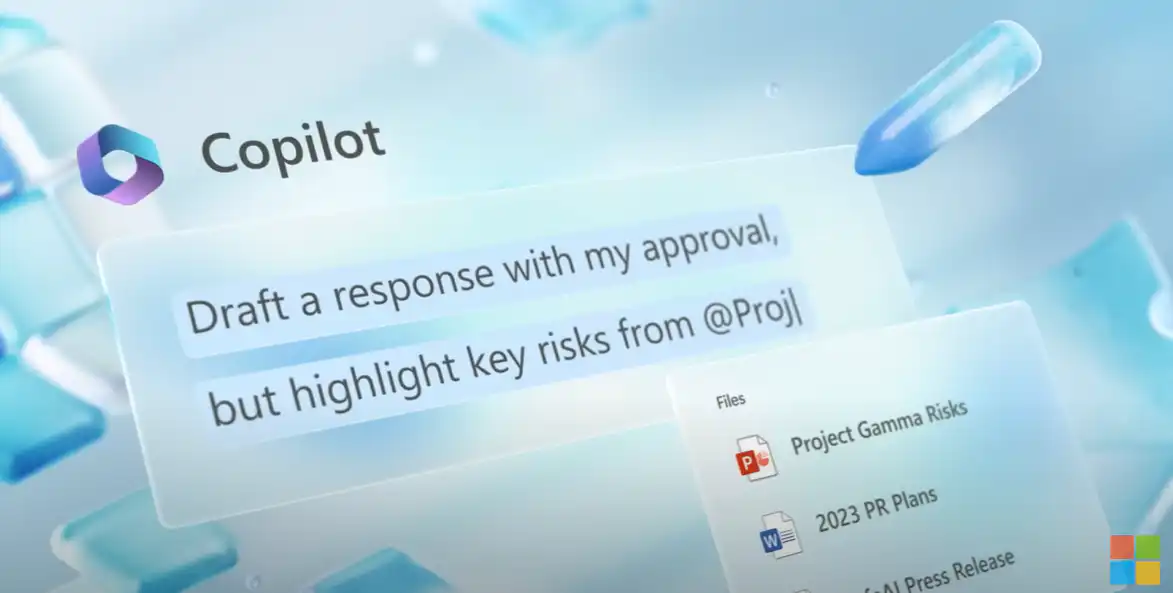
Microsoft Copilot In Outlook, the integration of artificial intelligence (AI) is transforming the way you manage your email. This introduction to Copilot in Microsoft Outlook will familiarize you with the extensive features and capabilities that help you optimize your email communication, scheduling, and organization. Copilot combines the power of technology with ease of use and helps you manage your inbox, draft emails, and automate recurring tasks. Discover how you can use Copilot for Outlook as your personal AI assistant for email management.
Copilot Features in Outlook
With Microsoft Copilot in Outlook, you have access to various features, including:
- Drafting Email Messages: Let Copilot help you write your emails.
- Responding to Emails: Reply to emails using (suggestion) prompts in Copilot.
- Summarizing threads: Summarize long email threads to quickly grasp the gist or key points.
- Coaching on Writing Emails: Get feedback on the tone, clarity, and sentiment of your email draft.
- Manage Inbox: Quickly take control of your inbox by prioritizing emails and generating summaries.
- Translating Emails: Ask Copilot to quickly translate emails into the language of your choice.
How does Copilot work in Outlook?
Important: Copilot is currently available only in the new Outlook for Windows, the web version, and Outlook.com. If you're still using the classic Outlook, switch to the latest version.
Compose new emails
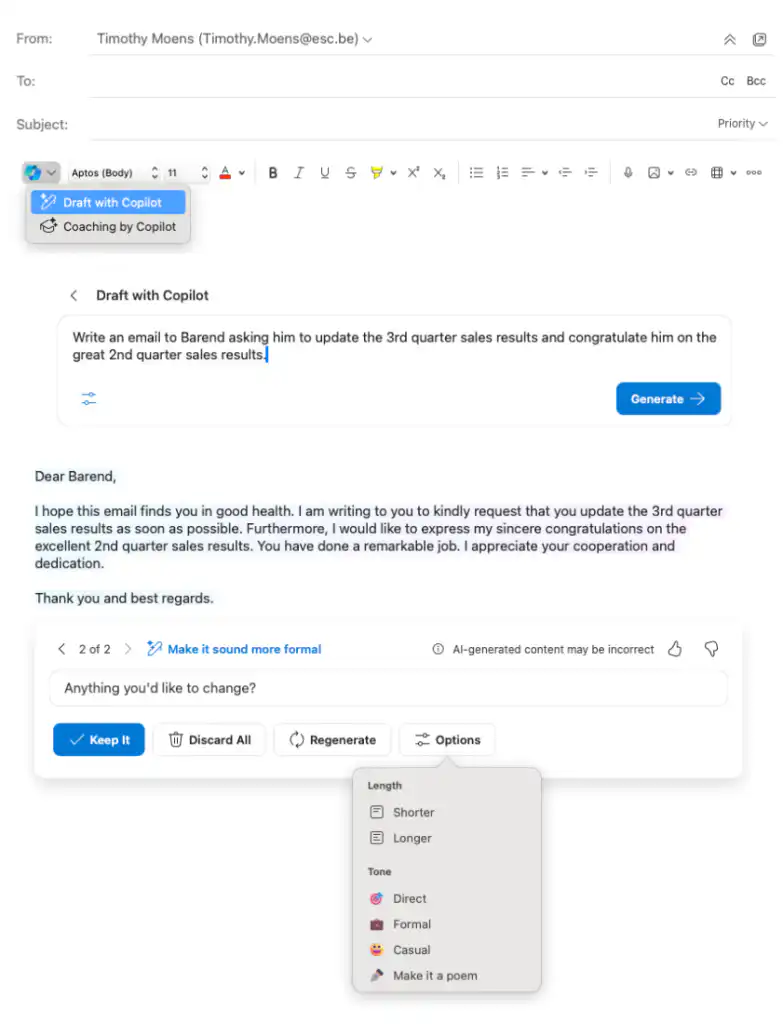
To use Copilot in Outlook to compose emails, start by writing a new email. In the toolbar, click the Copilot icon, then click “Draft with Copilot“. Next, type your prompt and let Copilot generate a draft email. Once the draft email has been generated, you can keep the response, delete it, or have it regenerated. Click on your prompt—which is displayed in blue and bold—to edit it, or click “Options” to adjust the desired length and tone of voice.
Replying to Emails
Just as you would when composing a new email, you can also reply using Copilot in Outlook. Open the email you want to reply to, click the Copilot icon, and then click “Reply with Copilot“. Then follow the same steps as when composing a new email.

Generate summaries
Let Copilot easily summarize emails or email threads. Open the email and click ‘Summarize by Copilot‘ or click the Copilot icon in the email and click ‘Summarize‘. Copilot will then scan your email and provide brief summaries.
Please note: In the case of long email threads, not all messages may be included in the summary, given the limitations on the amount of data that can be provided to the LLMs. In that case, users may receive a notification that the summary does not cover the entire thread.

Email Coaching
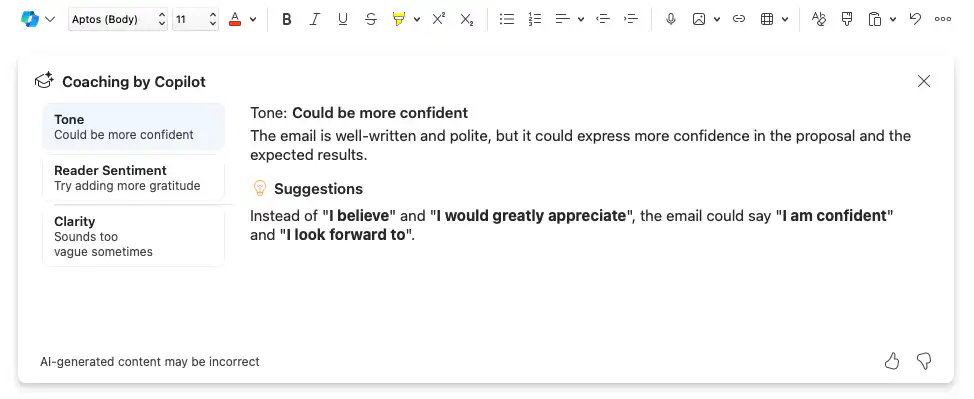
In addition to writing emails or summarizing them, Copilot in Outlook can also help you perfect your email through Coaching. Click the Copilot icon in the toolbar of your draft email, then click “Coaching by Copilot“. Copilot reviews your draft and provides recommendations on tone, clarity, and reader sentiment. Incorporate the feedback into your email draft and have it reviewed again, or send the email when you’re satisfied with the result.
Here are a few prompts to try in Copilot for Outlook
- “Write a reply to Jeroen and make it sound like the way I write.”
- “Summarize this email conversation.”
- “Write an email congratulating my team on the second-quarter sales figures.”
- “Write a response informing the customer that the shipment has been delayed by two weeks because a container ship was held up at customs.”
- “Let the team know that we’ve decided to run a discount promotion for the campaign and that we need to keep going so we can meet the deadline.”
- “Write a reply in French to inform the customer that “1234567890” is the shipment’s tracking number.”
- “Write an email based on the notes from the weekly meeting.”
Join the Copilot Community on Reddit
Are you curious about the latest developments and want to deepen your knowledge of Microsoft Copilot? The Copilot Community on Reddit is where enthusiasts come together to share insights, information, prompts, and new updates. It’s a platform where you can not only learn how to get the most out of Copilot but also share your own insights. Visit the Reddit Community and join in on lively discussions.


