

Release 2024, Wave 1 of Microsoft Dynamics 365 Business Central will be released in April.
We would like to inform you about the most important changes you may encounter in Business Central so that you can take timely action in response to these changes or take advantage of the new features as soon as they become available to you.
In this blog, we’ll tell you what new features you can expect regarding projects in Business Central. Are you curious about what other features you can expect in Business Central? Then read our blogs about the Recording Emissions in Business Central and What to Expect from Copilot (AI) in Business Central.
1. Create projects that you can bill to multiple clients
When projects involve multiple customers, invoicing the right customers for the right project tasks can be challenging and time-consuming. Business Central simplifies invoicing by allowing you to specify the customer on each project task line. With this information, you can automatically generate invoices for the correct customers for each project task.
2. Billing a customer for multiple projects
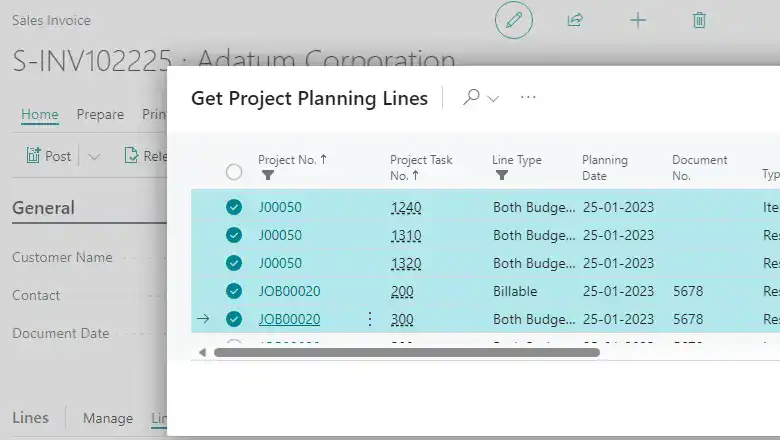
Simplify your invoicing process by sending a single invoice for multiple projects, which reduces manual effort and improves accuracy. Add project billing lines from multiple projects to a sales invoice all at once.
Here is an overview of the process.
- Create a new sales invoice for the customer in question.
- On the Rules tab, select the "Get Project Planning Rules" action.
- An overview of billable project planning rules for this customer's projects is displayed and can be selected.
- Select the project planning rules you want to add to the invoice, and then click OK.
3. Project-Based Assembly
Project-based assembly helps you improve your inventory management by assembling only as needed, based on demand.
When you enter an assembly item on a project scheduling line, an assembly order is automatically created. The assembly order is based on the project scheduling line, and the lines are based on the item’s assembly bill of materials. The quantity of parts on the assembly bill of materials is multiplied by the order quantity.
Just as in sales, you cannot post linked assembly orders directly. The created assembly order is reserved for the project, and Business Central synchronizes item tracking between project planning lines and assembly orders. This feature integrates with warehouse management functions to simplify assembly and shipping and ensure a smooth workflow from project assembly through delivery.
4. Use standard project management terminology
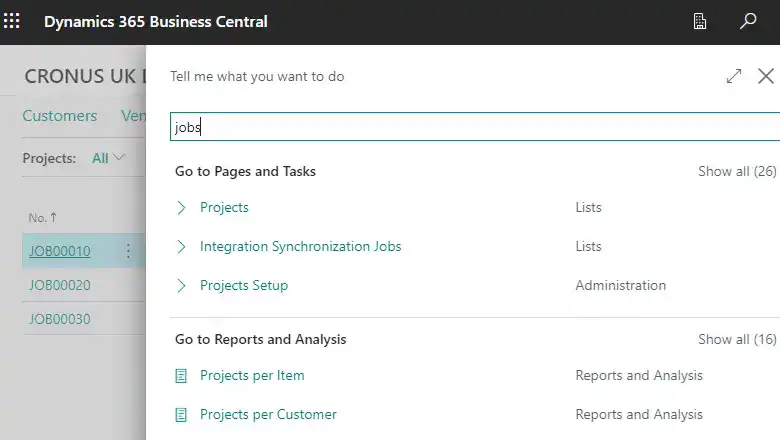
For a long time, the project module was referred to as “jobs,” which caused confusion. This term is not what people who work with projects expect. To clarify the true nature and purpose of the project accounting features for different types of businesses, the term “job” is being replaced with “project” in the user interface and documentation.
The renaming will not disrupt existing integrations or customizations, as only the labels in the user interface and the terms in the Microsoft documentation will be updated. The names of the underlying table and field objects will remain unchanged. In addition, you will notice little difference if you have Business Central set to Dutch.
5. User-friendliness will be improved for services and projects
The usability of various areas within project and service management is improved. For example, you can eliminate a step by automatically releasing source documents, and data is easier to access and process in various locations.
The Power BI and project details fact blocks are available in the project list, so you can view project details directly from the list.
You can also add more columns to service documents:
- Quote numbers on booked service documents, such as service credit memos and invoices.
- The "Bill-to Name" and "Sell-to Name" fields are available in the list of service contracts.
- External document number in service documents, service orders, credit memos, invoices, quotes, posted service invoices, shipments, credit memos, and service entries. This information is carried over to the general ledger entries. If no external document number is specified, Business Central uses the original number of the service document when posting it to the general ledger.
6. Define a default location for a project or project phase
Reduce the time you spend on data entry and focus more on core tasks by setting a default location for projects on the project card. Optionally, you can also work with storage locations. When you create project tasks, project scheduling rules, and project journal entries for the project, the default site and storage location are automatically assigned. Just as with production order processes, these default values simplify data entry for project tasks, project scheduling rules, and project journal entries.
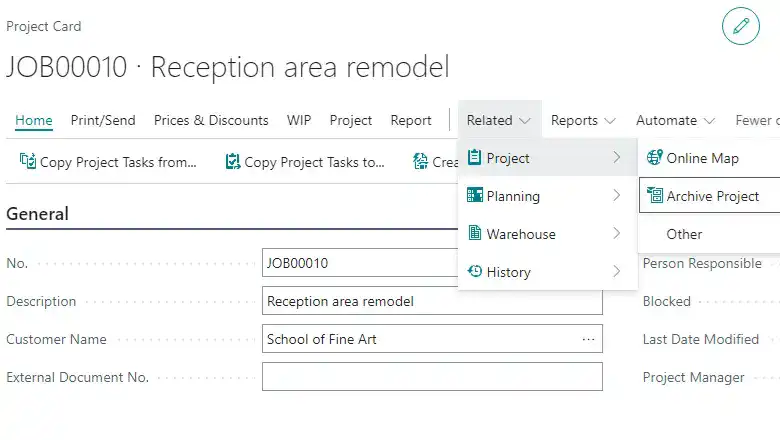
7. Archiving Projects
Projects often change and evolve over the course of their lifecycle. The archiving feature gives you control over your project data through audit trails and version control.
The archiving options for projects are similar to the functionality you may already be familiar with from the sales and purchasing areas.
You can set projects to be archived automatically, so you don't have to worry about it. With automatic archiving, Business Central creates a new version of the archived document when users do the following:
- Change the status of a document or delete it.
- Print, download, or email a document.
- Submit an invoice.
Need more information?
On the Microsoft's website You can find more information there.


