
About IT Security and IT Security There's been a lot of buzz lately. When can you actually say that you've carefully taken the appropriate precautions? Our IT management consultants provide a quick overview of what you need to keep in mind.
Physical Security of Your Network Infrastructure and Server
If anyone can just walk right up to your server, there’s no point in even thinking about firewalls, antivirus software, or security policies. Your server and central network infrastructure should be kept behind a locked door—preferably in a room where few people are allowed to be.
Do you also take environmental factors in the server room into account? Think of dust, temperature, humidity…
Firewall

Your firewall is your first line of defense. It determines what leaves your network and what is allowed to enter it. We recommend using ‘whitelists’ if your firewall supports them. This means that nothing is allowed in or out except what’s on that ‘whitelist.’ While this does require more effort to maintain, it’s much more secure.
Are you also taking into account the limited firewall module built into your telecom provider’s router? It’s a pretty weak solution that can’t compare to a firewall designed specifically for that purpose in terms of security and capabilities.
Client or Windows Firewall
In addition to a physical firewall that protects all devices on the internal network, it is definitely advisable to configure the built-in Windows firewall correctly as well. After all, people who work from home or visit clients often connect their computers to unfamiliar networks. The only protection available in such cases is the built-in firewall. You can actually turn this Windows firewall on or off depending on the type of network you’re connecting to. Be sure to turn it on when connecting to public or private networks. If you’re logged into your domain, you could choose to turn it off if you notice any conflicts. Normally, you’re already behind your secure domain in that case anyway.
Are you also considering centrally enforcing these personal firewall settings on your employees' devices? That way, you can be sure that everything is properly configured on all of your employees' devices.
Password Policy
There's nothing more annoying than having to change your password at regular intervals. We know. Still, it’s one of the more important security tips. Make sure the system requires your employees to change their passwords from time to time. Your system administrator can configure the frequency of these changes.
Do you also take into account the complexity of the passwords you choose? Make them long enough, throw in some numbers and uppercase letters, and preferably a special character as well. Or consider using a passphrase.
User Management
Not all employees are authorized to access all company data. It is recommended that company data be organized according to its content and confidentiality level and that access be restricted to only those with the necessary permissions.
Do you also take administrator or admin rights on the devices into account? Often, it’s not necessary for employees to have full admin rights on their PCs. Without those admin rights, a compromised PC poses a much smaller risk to your network.
Antivirus, antispam, and antimalware on the devices
Antivirus, antispam, and antimalware are often bundled into a single antivirus solution that is installed on every device in your company. The built-in Windows Defender covers the basics. More advanced solutions are often just a little faster at providing protection against new viruses and threats.
Do you also take the update interval into account when distributing new virus definitions to all your employees? You can configure this from your central antivirus server.
Email Security
If you have your own email server, you need to properly configure the antispam and antimalware settings and document the rules. Is your email in the Office 365 Cloud In that case, it is automatically configured to be secure, and Microsoft takes care of updating the rules.
Do you also take into account the email clients—such as Outlook—that your employees use to access their email? Make sure there are no unnecessary security gaps there.
Windows Updates
Microsoft and most other software vendors provide updates on a regular basis; these are often security updates. It is recommended that you use Microsoft’s standard Windows update methods to keep your systems up to date. Make sure the policies for both your servers and clients are properly configured so that updates are always installed.
Do you also take into account software that you use frequently but have to update manually? It’s a good idea to have a written policy outlining the update procedure for this software.
Remote access or access to your network from a distance
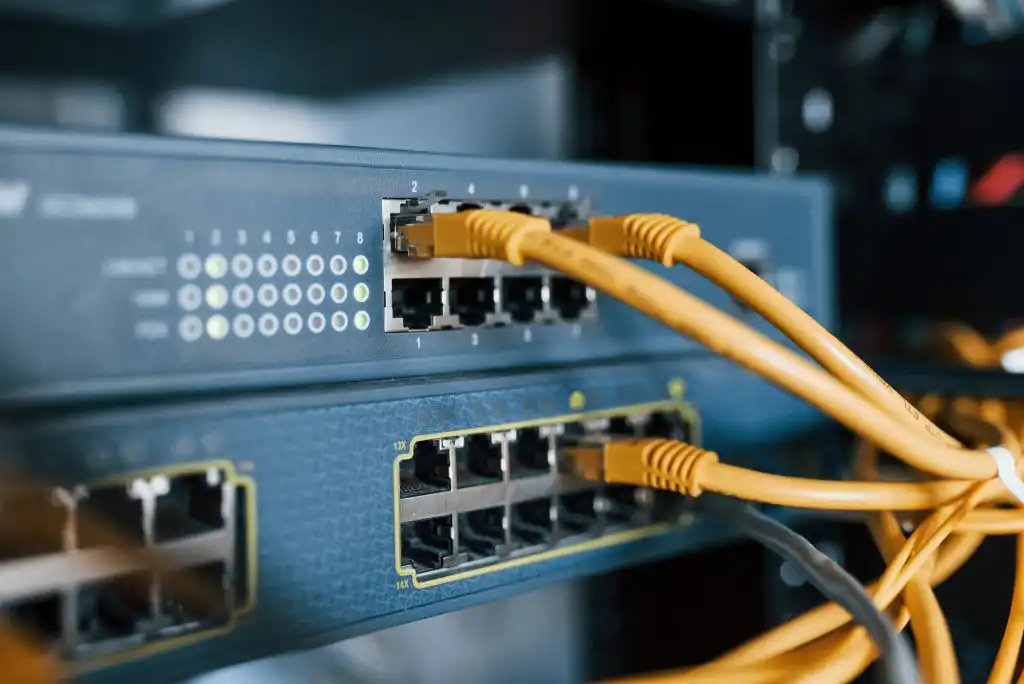
Working remotely usually requires access to company data via the Internet. There are various technologies available to facilitate this remote access, each with its own advantages and disadvantages. It is recommended to use a VPN solution; most firewalls offer VPN capabilities. Make sure you use a VPN through secure software and the most secure protocols.
Are you also taking steps to secure RDP access? RDP stands for Remote Desktop Protocol, and it’s often used when a VPN isn’t working. RDP frequently uses the same ports, which hackers try to exploit to gain access. Using an alternative port is definitely a good idea.
Monitoring
Check regularly to make sure all PCs are up to date, the latest virus definitions have been installed, and there have been no hacking attempts. Our IT management department uses remote monitoring software for this purpose, which also keeps an eye on a number of technical aspects such as disk capacity, processor, RAM, network, and so on. This ensures a proactive IT policy in which security is always a priority.


