Microsoft Teams makes remote work easier. The tool allows you to stay in touch with colleagues through chat, phone calls, online meetings, whiteboards, file sharing, and more.
Do you manage your customer information in Microsoft Dynamics 365, you can also integrate your Dynamics 365 environment with Teams. This allows you to collaborate remotely with colleagues on a quote or sales opportunity. In this blog post, we explain how it works.
1. Set up Microsoft Teams integration
By default, the integration of Microsoft Teams with Dynamics 365 is disabled in the Common Data Service. On the Microsoft Docs site You'll find the instructions for enabling the integration there.
2. Link Dynamics 365 records and views
2.1 From Microsoft Teams
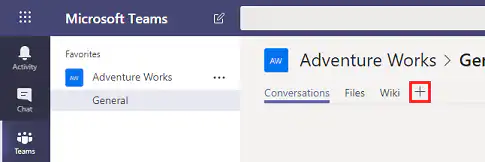
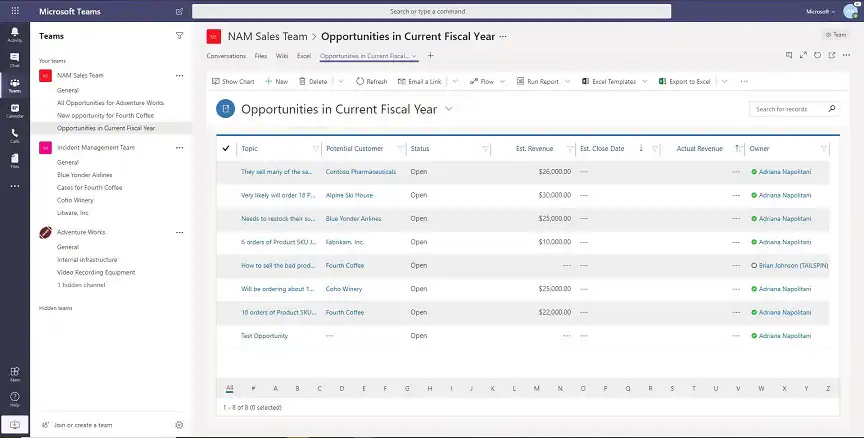
From a Teams channel, select the button Add+ and select it Dynamics 365 icon.
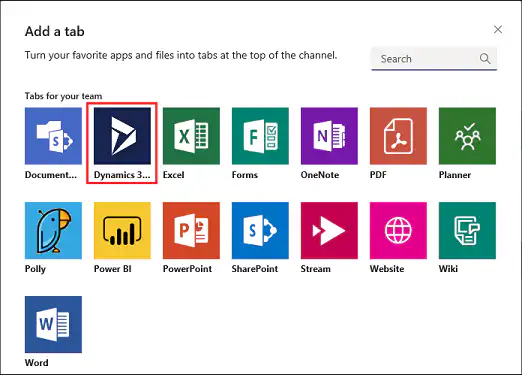
Next, select “Select Entity” or “Show Selection” and search for the records or views you want to connect to Teams. Once the connection is successful, a so-called model-driven app record or view.
2.2 From Dynamics 365
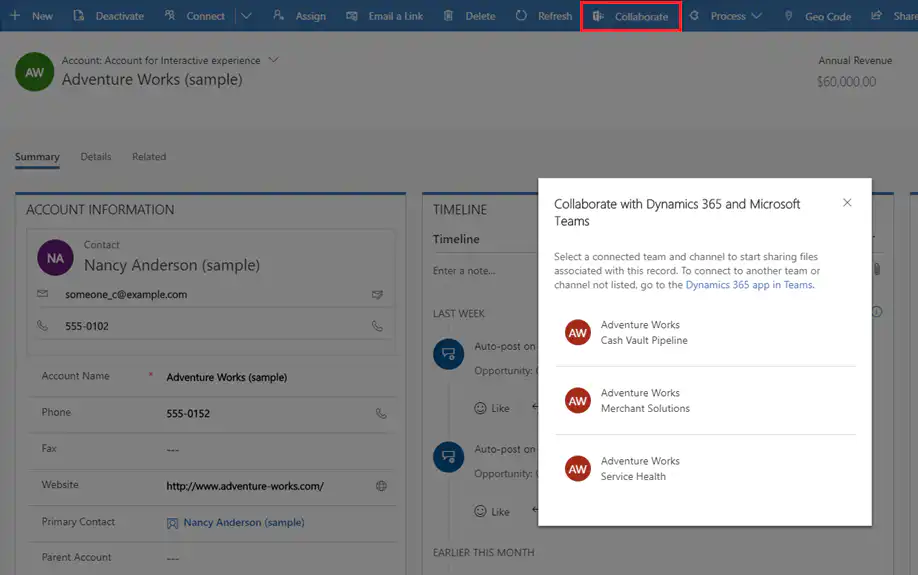
Click the button Collaborate to link a recording or broadcast to a Teams channel.
3. Viewing and Editing Dynamics 365 Records
Click the button Go to the website to open the linked Dynamics 365 record or view.
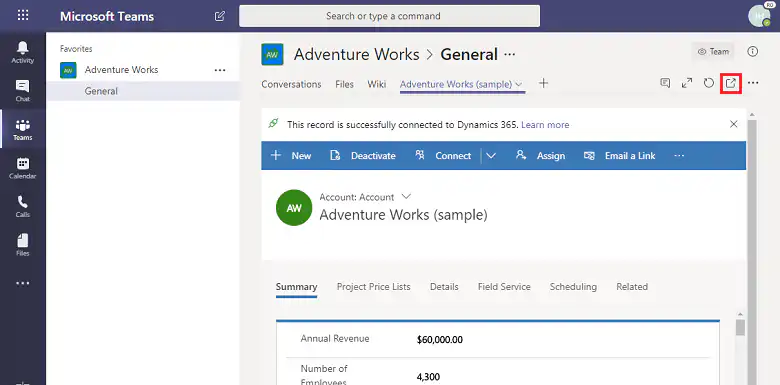
Any member of a Teams channel can view the linked Dynamics record, even if they are not a Dynamics user. However, to actually edit records, you need a Dynamics 365 license with sufficient editing permissions. Changes are automatically synchronized in Dynamics 365.
4. Conducting Conversations
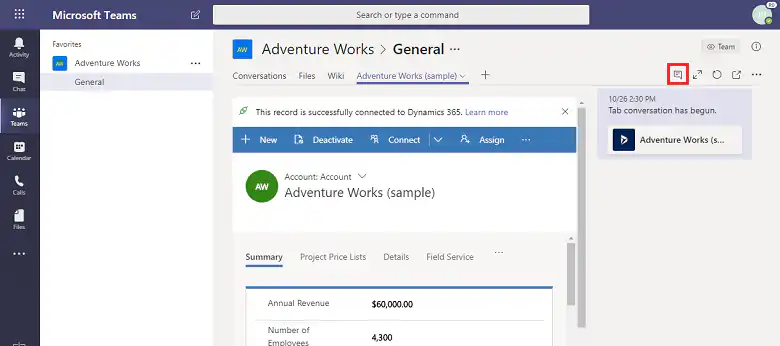
You and your colleagues can chat alongside the model-driven app record or view. Click the button Display Tab Conversation to open the chat window and start a new conversation or continue an existing chat.
5. Viewing and Linking Files
Select the tab Files in the correct team channel. From here, you can upload files and link them to a model-driven app record. The uploaded document is then displayed in Microsoft Teams under the tab Files displayed.
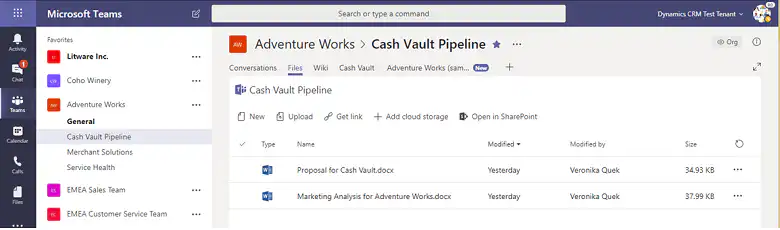
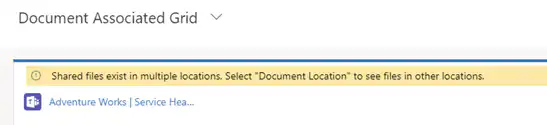
If you see the warning message below, it means there are shared files in multiple Teams channels. Select “Document Location” to view the files on the other channels.
6. What record types does the Microsoft Teams integration support?
Account, Agreement, Note, Appointment, Business Unit, Campaign, Request, Category, Competitor, Contact Person, Email Address, Expenses, Fulfillment Preference, Inventory Adjustment, Inventory Transfer, Invoice, Kbarticle, Knowledge Article, Prospect, Sales Opportunity, Opportunity Product, Order, Product, Project, Purchase Order, Purchase Order Receipt, Quote, Resource Request, RMA, RMA Receipt, RTV, Sales Documentation, Task, Team, Work Order
7. Using the bone function
The bot feature allows you to search for model-driven app records within a Microsoft Teams conversation.
Search for and open the Dynamics 365 bot. Open Chat on the left side of Microsoft Teams and select Dynamics 365. The tab Conversation opens with the welcome message sent by the bot. Select Sign Up.
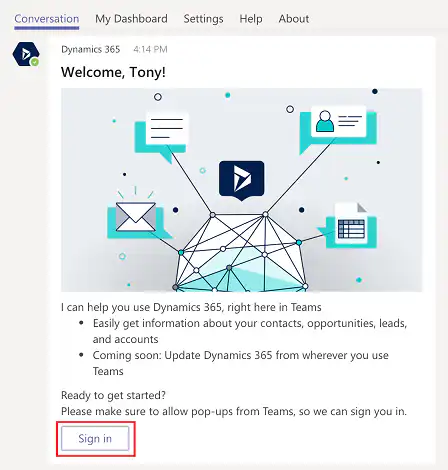
You will then see a few possible options, or you can also search for records ‘in the search field.’.
8. Using Personal Dashboards
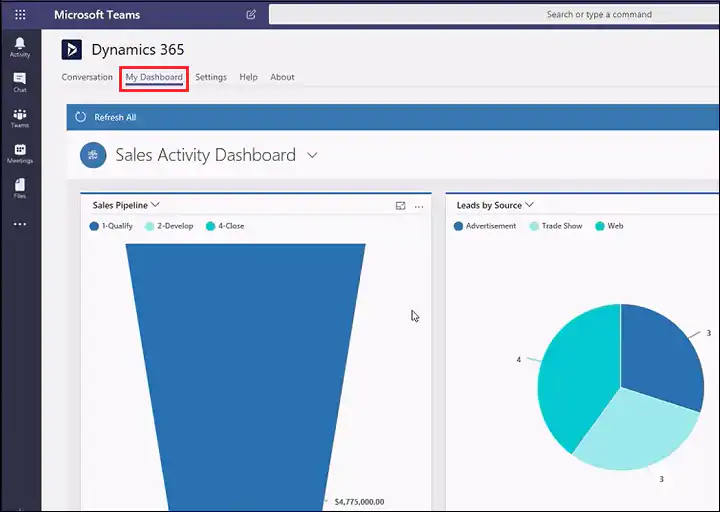
Select the tab My Dashboard. The dashboard displayed is based on your user role.