
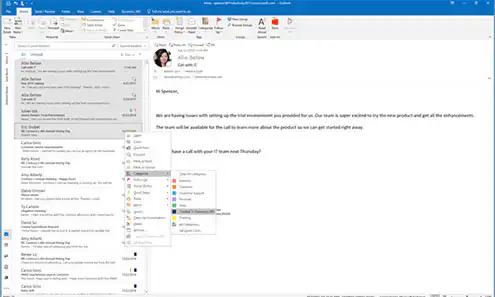
In Microsoft Dynamics 365 You can keep track of emails, appointments, and tasks from Outlook via a specific Outlook category, “Tracked to Dynamics 365” called.
You know what I'm talking about—the (color) categories you can assign to emails, appointments, and tasks in Microsoft Outlook to make them easier to identify and group.
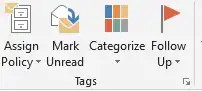
You can now also category Tracked to Dynamics 365 Have it activated and paired to an email, appointment, or task. These are then stored in Microsoft Dynamics 365. This ensures that you can quickly see which emails, appointments, and tasks are already tracked in your CRM and which are not. You can then open the Dynamics 365 Outlook app to view more information about a specific email or appointment.
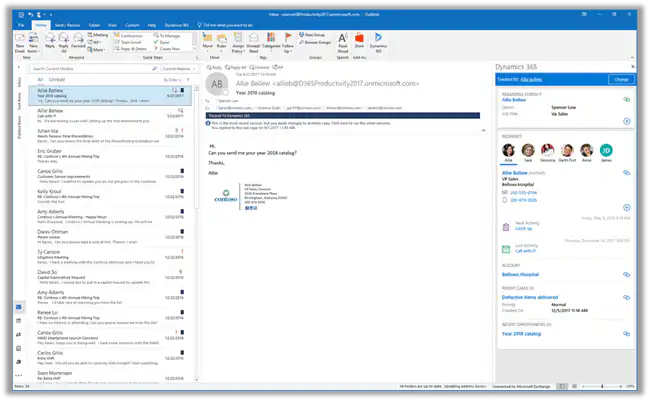
Also, the Tracked to Dynamics 365-category that a colleague has access to your mailbox and the necessary permissions in Dynamics 365; You can ‘track’ emails, appointments, and tasks under your name in Dynamics 365.
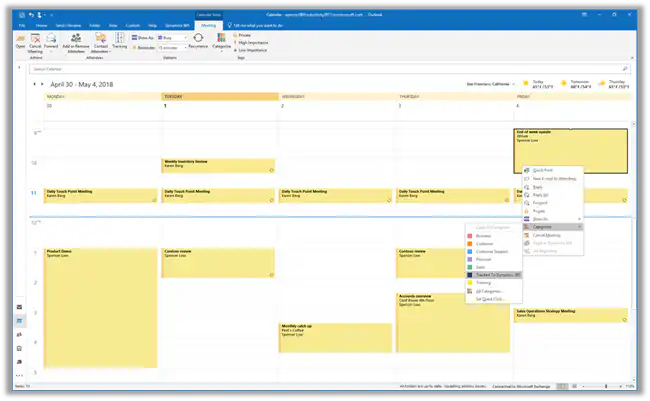
Another advantage is that you multiple emails at the same time (in bulk) can select and track in Microsoft Dynamics 365.
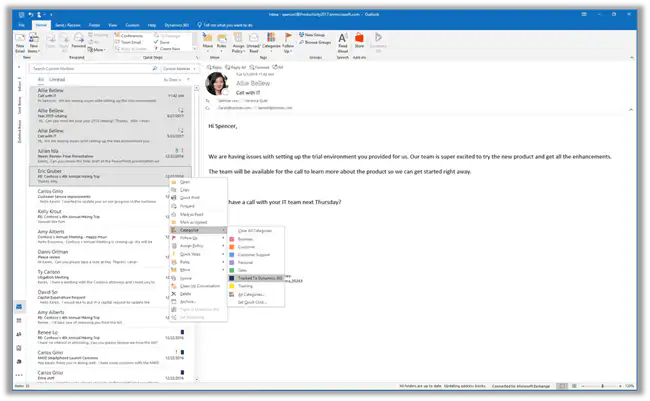
How the Tracked to Dynamics 365- Activate category?
The Tracked to Dynamics 365- This category is based on server synchronization, in which the email system is synchronized with Dynamics 365. The new Outlook category is currently available in Dynamics 365 (online) version 8.2 and later.
If you Tracked to Dynamics 36If you want to use the 5-category system, then you must the system administrator In your Dynamics 365 environment, enable this using a OrgDBOrgSetting. Please contact us for more information.


