

Are deadlines a challenge, or is it like trying to bail out a sinking ship? It’s crucial that you organize your tasks clearly and coordinate effectively with your colleagues. The number of features offered by Microsoft Apps is, to put it mildly, overwhelming. In this article, you’ll learn how to bring order to your to-do list, and we’ll show you how to better organize your professional calendar.
We set out to find dynamic planning tools that offer enough options to meet today’s needs. That’s how we ended up with Microsoft Lists and Microsoft Planner.
Microsoft Lists
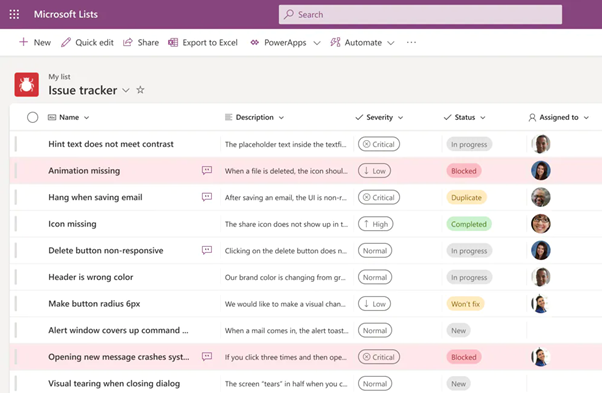
Microsoft Lists focuses on to-do lists. You can define the fields yourself, customize options, set the layout, and choose between a list view or a calendar view. You can think of Lists as a planner where you schedule all kinds of tasks that you don’t actually label as ‘real tasks.’ For example, inventory checks, asset management, the agenda for an upcoming networking event, and so on.
A sketch of the example:
- Name: Job Description
- Description: A detailed description of the task
- Ernst: How important is the task?
- Status: Have you started working on it yet? Is there a problem that needs to be solved?
- Assigned to (person): Assign tasks to people so that you and your coworkers can see more quickly what needs to be done.
- Add even more fields to segment your audience even more specifically. By which quarter must a task be completed? Which product or service is it about? What type of task is it? For example, an email campaign, a blog post, an interview, and so on.
When the topic of paid campaigns comes up, it rings a bell with the marketing department. How much exactly have we spent on our various social media channels? Add a “Budget” field, and you’ll be able to see everything at a glance.
Microsoft Planner
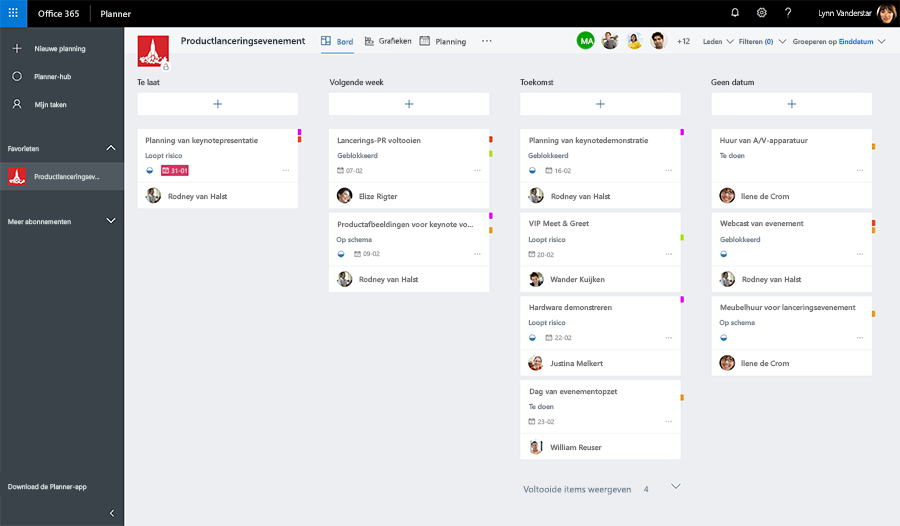
Whether through a grid view or a calendar view—whichever you prefer—Microsoft Planner puts the spotlight on your professional schedule. People who struggle to meet deadlines will undoubtedly turn this challenge into an asset. Some features that best describe Planner are fast, efficient, and easy to understand. The tool is indispensable for projects involving both small and large teams. It clearly shows the most urgent tasks, tasks that don’t require immediate attention, and tasks that still need a due date assigned. On the far left, you’ll see where you’ve missed a deadline. It integrates effortlessly with Microsoft Teams, To Do and Tasks.
Does it give you a sense of satisfaction when you can check a task off your list on time?
Conclusion
Although both tools seem very similar, we’ve noticed that they are actually two different tools, each with its own specialty. For professional projects, it’s best to use Microsoft Planner, while Microsoft Lists focuses more on to-do lists.


