
To set up email from Microsoft Office 365 on an Apple smartphone, follow these five steps:
Step 1.
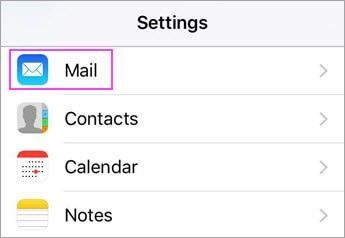
Go to Settings On the device, scroll down to Email and click on Accounts >Add an account.
Note: If your device hasn't been updated to iOS 10, go to Settings > Email, Contacts, Calendars > Add an account.
Step 2.
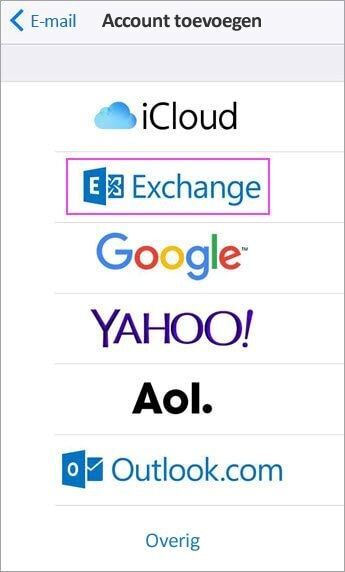
Select Exchange.
Step 3.
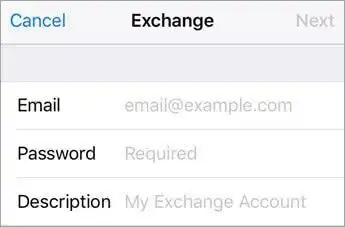
Enter the email address, password, and a description of your Microsoft Office 365 account. Then click Next.
Note: Your email address must be your work or school account for Microsoft Office 365, such as naam@domein.com, naam@domein.onmicrosoft.com or naam@schoolnaam.edu.
Step 4.
If you are prompted to enter server settings, enter the information below and tap Next.
- Email: the full email address
- Server: outlook.office365.com
- Username: the full email address
- Password: the password for your email account
Note: Check carefully to make sure everything is spelled correctly.
Step 5.
You may be asked for certain permissions; tap Yes to agree. Next, select the apps from the email account that you want to sync with your iOS device, and tap Save.
Note: If you are asked to create a passcode, tap Continue and enter a numeric passcode. If you are prompted to set a passcode and you do not do so, you will not be able to access this account on the device. You can also set a passcode later through Settings.
Your email account is ready to use with the iOS Mail app.